
Add an Employee
- Who can do this
- HR Managers, Company Admins
- Plan
- Every plan can add people, up to the number of people your plan covers. The checklist box needs the HR Core module.
- Updated
Before You Start
- The person's work email. They sign in with it, and it must not already belong to someone in your company.
- Their role. If you are not sure, read Choose the Right Role for Someone first.
- If you have them: their joining date, department, manager and monthly salary. You can add all of these later from their profile.
Steps
- Step 1: Open Manage and choose People.
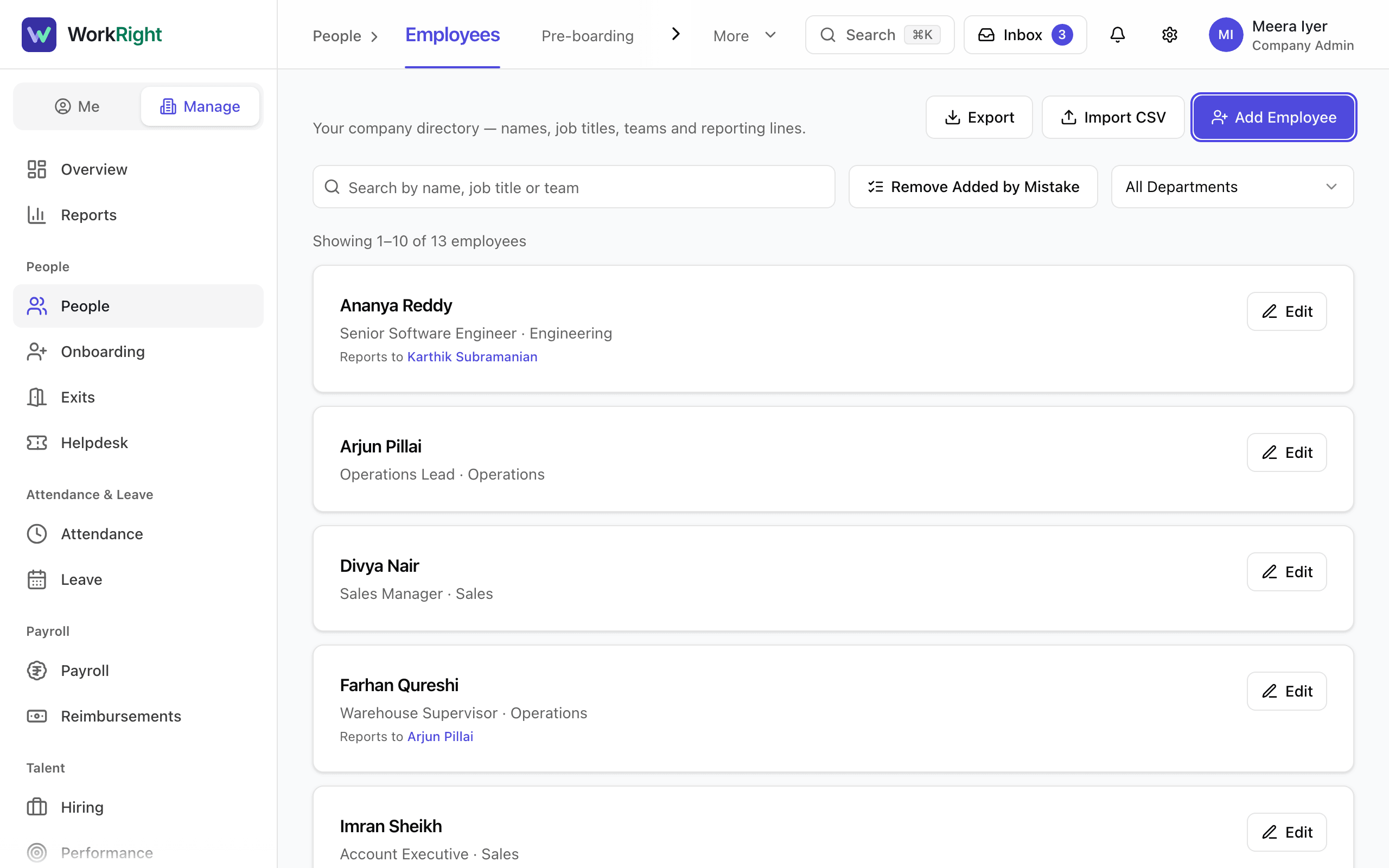
- Step 2: Select Add Employee. The page that opens is called Add People. Stay on the Add One tab.
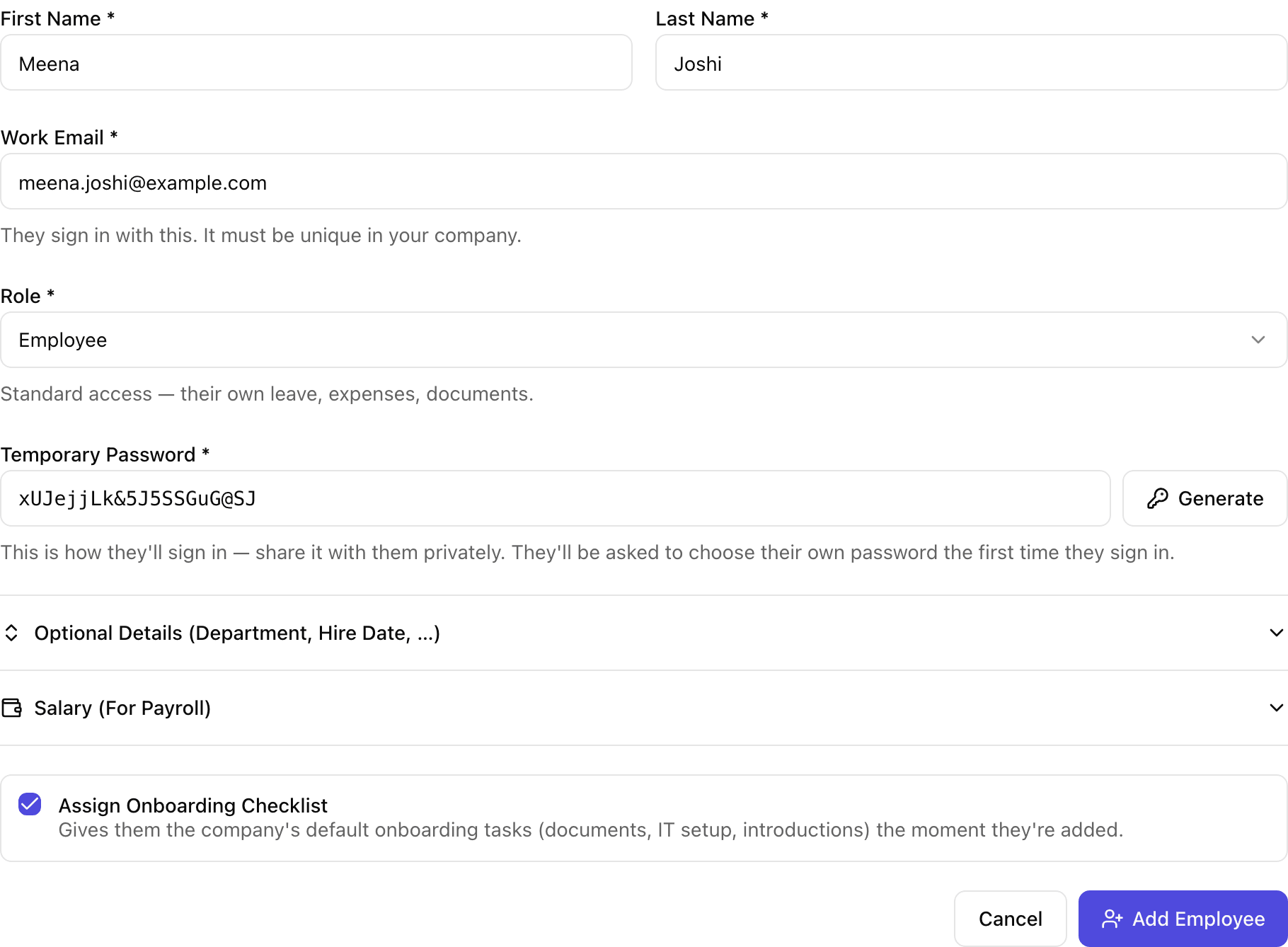
- Step 3: Type the person's First Name, Last Name and Work Email.
- Step 4: Pick a Role. The line under the box says what that role can do.
- Step 5: Set a Temporary Password. Select Generate for a strong one, or type your own with at least 12 characters.
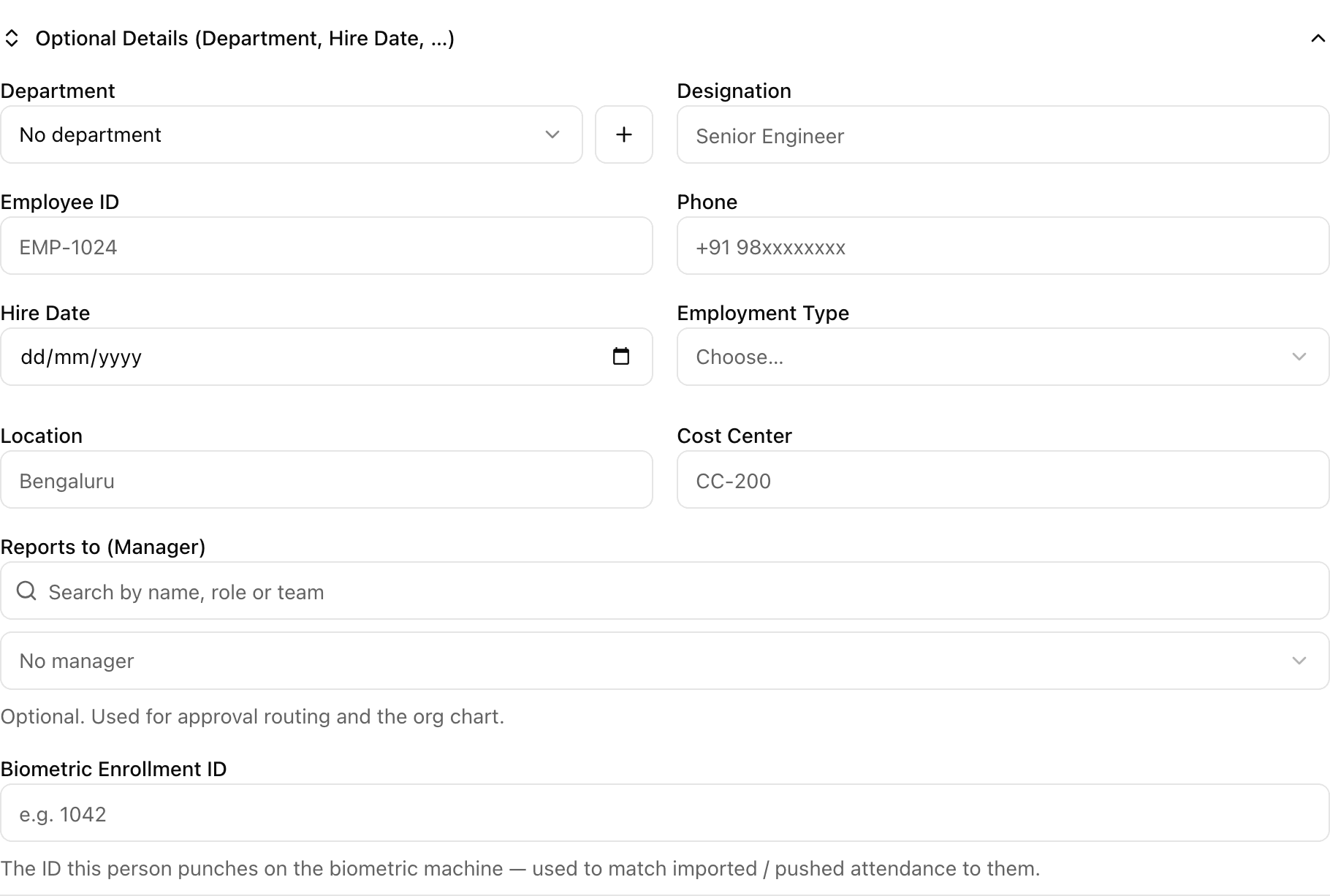
- Step 6: Open Optional Details to add department, designation, employee ID, phone, hire date, employment type, location and cost center.
- Step 7: In the same section, use Reports to (Manager) to pick their manager. It decides who approves their requests and where they sit on the org chart.
- Step 8: To get payroll ready, open Salary (For Payroll) and fill Basic, HRA and Special allowance as monthly amounts in rupees. Write ₹25,000 as 25000.
- Step 9: If you see Assign Onboarding Checklist, keep it ticked to give them your default onboarding tasks as soon as they are added.
- Step 10: Select Add Employee at the bottom of the form.
What Happens Next
- A notice at the top of the page says the person was added and tells you what happened to the invite email.
- If your company can send email, the person gets a link to set their own password. The link works for 7 days. The temporary password you typed is only a fallback.
- If email is not set up for your company, nobody is emailed. Give the person the temporary password yourself. They choose their own at first sign-in.
- If the email address already has a WorkRight login, the person keeps using their own password. The notice says whether we told them or sent a link to confirm their email.
- The notice also links to the person's profile, where you can add documents and salary, and to their appointment letter.
- The form clears, so you can add the next person straight away.
If the App Says No
The app says:
Only company admins and HR managers can add people.
What it means: Your role cannot add people, so the form is hidden. Managers can see their team but not add to it.
What to do: Ask a company admin or HR manager in your company to add the person.
The app says:
someone in this company already uses this email
What it means: Another person in your company already has this work email.
What to do: Check the People list for them. If it is a different person, use a different email.
The app says:
this employee ID is already used by someone else in this company
What it means: Employee IDs must be different for every person.
What to do: Pick another employee ID, or leave the box empty.
The app says:
Use 3 of 4: lower-case, upper-case, a digit and a symbol
What it means: The temporary password is too easy to guess.
What to do: Select Generate to make a strong one.
The app says:
Every seat on your plan is taken
What it means: Your plan covers a fixed number of active people and you have reached it.
What to do: Deactivate someone who has left, or upgrade from Settings, then Plan and Billing.
Questions People Ask
Do I have to set a password for the person?
Yes, the form needs one. When email works for your company, the person gets a link to choose their own password and normally never uses yours. It is the fallback if the email goes missing.
Why can't I pick Company Admin as a role?
Only a company admin can make someone a company admin. If you are an HR manager, ask a company admin to do it. Choose the Right Role for Someone explains who can give which role.
Can I add someone who has no email address?
No. The work email is how the person signs in, so it is required. For someone who is not hired yet, use Pre-board a Joiner Before Day One, which works with their personal email.
Does a new person use up a seat on my plan?
Yes. Every active person counts, whatever their role or employment type. The seat meter on the Add People page shows how many are left before you fill in the form.
I added someone by mistake. Can I undo it?
If they have no history yet, you can delete them completely. See Remove Someone Added by Mistake, or Deactivate Them.
Related
- Choose the Right Role for Someone — What each of the six roles can do, who is allowed to give which role, and how the company owner fits in.
- Import People From a Spreadsheet — Add many people at once from a CSV file, check a preview row by row, and save them in one go.
- Fix an Invite That Did Not Arrive — Resend an invite, correct a mistyped email, or give the person a new temporary password when the invite never reached them.
- Assign and Work Through an Onboarding Checklist — Give a new person a checklist of first-days tasks, see who owns each task, mark tasks done or skipped, and edit the checklist your company uses.
- Add Contract Staff, Interns and Consultants — How to add someone who is not a regular full-time employee, and how to pay them through payroll or by invoice.
- Remove Someone Added by Mistake, or Deactivate Them — Delete a person you added by mistake, or switch someone off when they leave. Each has different rules.
Plain-English summary of how the app works, not legal advice.