
Import People From a Spreadsheet
- Who can do this
- HR Managers, Company Admins
- Plan
- Every plan can import people. The onboarding checklist option needs the HR Core module.
- Updated
Before You Start
- A spreadsheet in Excel or Google Sheets with one person per row. You will save it as a CSV file.
- Enough free seats on your plan. The import is all or nothing, so it does not start if some rows would not fit.
Steps
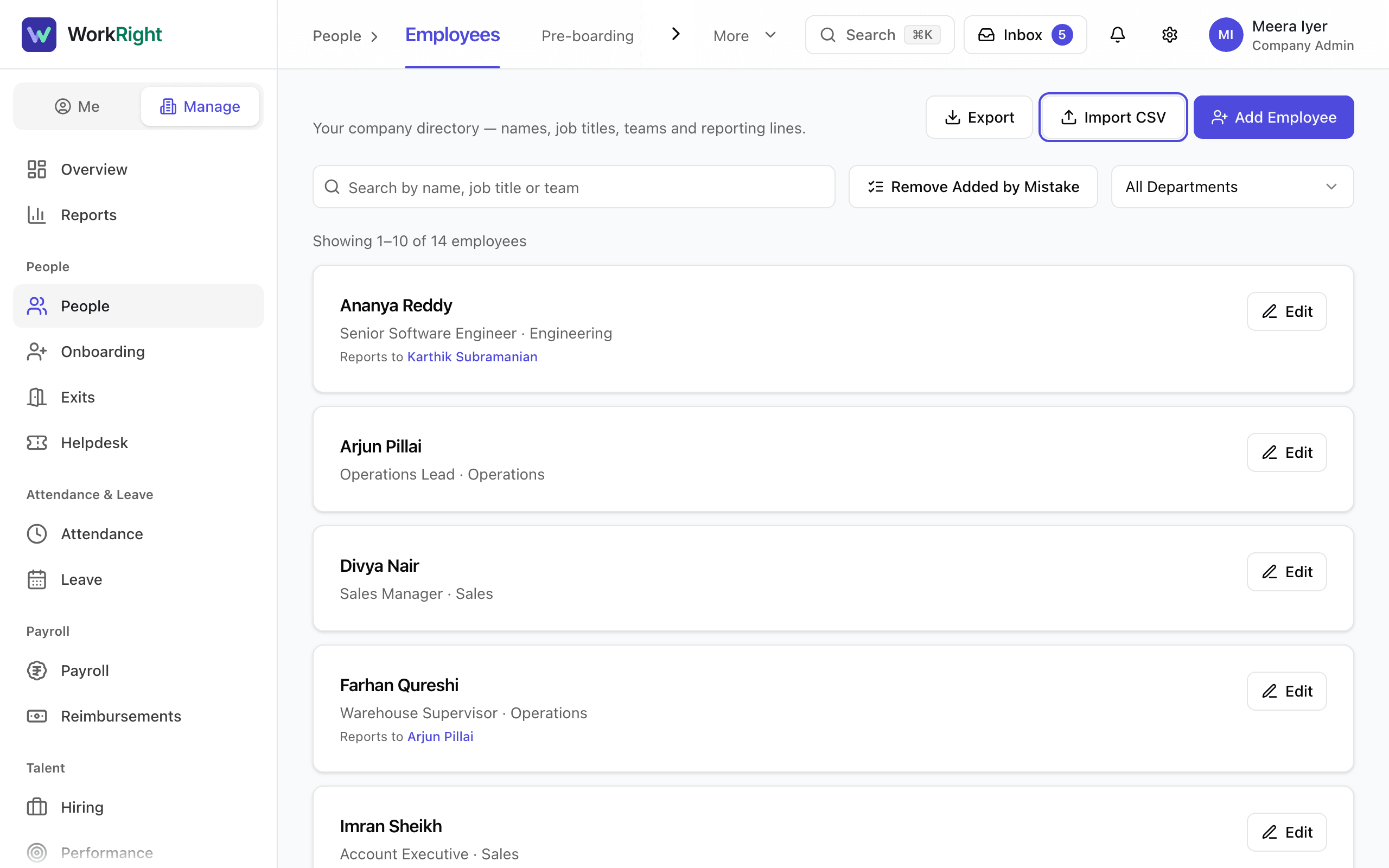
- Step 1: Open Manage, choose People, then select Import CSV. You can also open Add People and use the Import CSV tab.
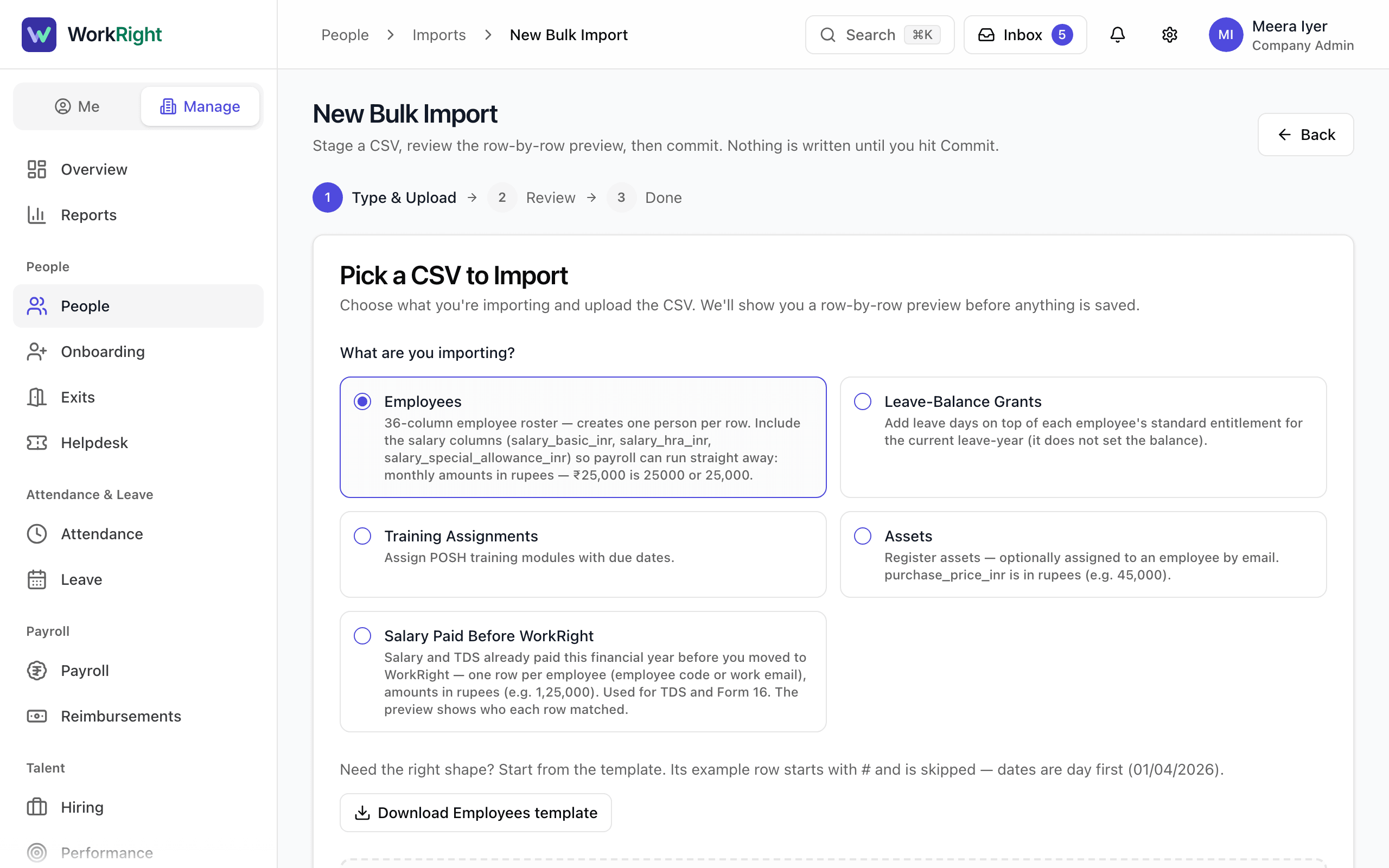
- Step 2: Under the question about what you are importing, choose Employees.
- Step 3: Select the button that starts with Download to get the template, and open it in your spreadsheet app.
- Step 4: Fill in one row per person. Only the email, first name and last name are required. A blank role means Employee.
- Step 5: Write dates day first, for example 01/04/2026. Write money in rupees, for example 25000 or 25,000. The template has one example row that starts with #. The import skips it, so you can leave it or delete it.
- Step 6: Save the file as CSV, then drop it on the page or select Browse Files.
- Step 7: Select Continue to Preview.
- Step 8: Read the preview. Every row shows whether it is fine or what is wrong with it. If any row has a problem, fix it in your file and upload the file again.
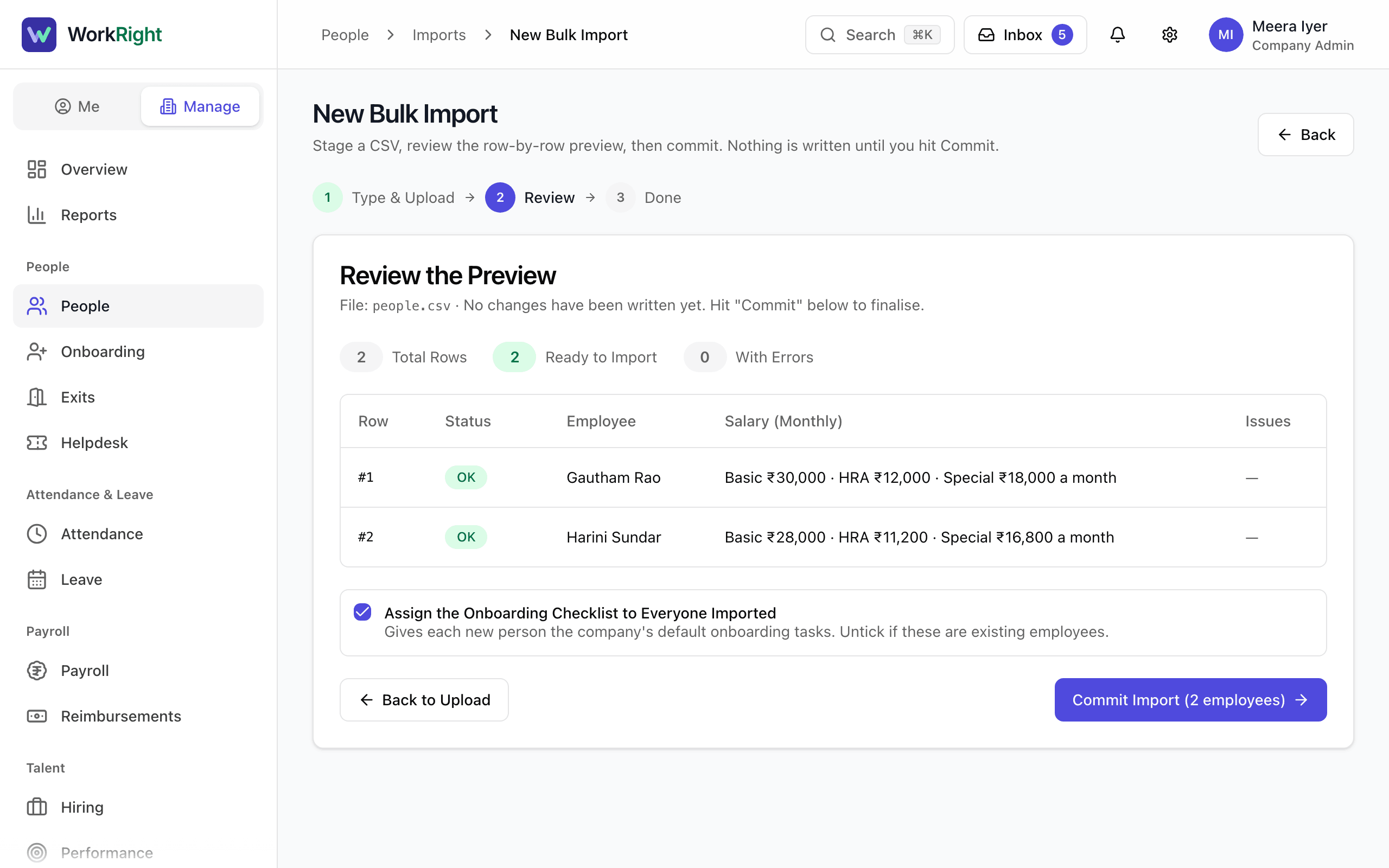
- Step 9: If you see Assign the Onboarding Checklist to Everyone Imported, keep it ticked for new joiners and untick it for people who already work with you.
- Step 10: Select Commit Import. Nothing is saved until you do.
- Step 11: Read the notices on the result page. They tell you whether invites went out, which new departments were added, and who needs a follow-up.
What Happens Next
- Every person in the file is added in one go. If your company can send email, each person gets a link to set their own password.
- If email is not set up, nobody is emailed. Open each person's profile and use Reset Temporary Password to give them a way in.
- Departments in your file that are not on your list yet are added for you. You can rename or merge them later in Settings, under Departments.
- People imported without a salary are still added. Payroll needs a salary before it can pay them, so add it from their profile or with another import.
- Every import is kept in Import History, with a file you can download if any row failed.
If the App Says No
The app says:
Fix the rows below before committing
What it means: At least one row has a problem, so the commit button stays off until every row is valid.
What to do: Read the issue next to each flagged row, fix the CSV and upload it again.
The app says:
Not enough seats on your plan
What it means: The file adds more people than your plan has free seats for. Nothing is imported.
What to do: Remove some rows, deactivate people who have left, or upgrade your plan.
The app says:
email is required
What it means: A row has no work email.
What to do: Fill in the email column for that row.
The app says:
first_name is required
What it means: A row has no first name.
What to do: Fill in the first_name column for that row.
The app says:
must be one of: Employee, Manager, HR manager, Company admin, ICC member, Accountant (blank means Employee)
What it means: The role column holds a word the import does not know.
What to do: Use one of the six role names, or leave the cell blank.
The app says:
only a company admin can make someone a company admin
What it means: A row asks for the Company admin role, which only a company admin can give.
What to do: Ask a company admin to run the import, or change that row's role.
The app says:
This file uses the old template with a password column.
What it means: Your file came from an old template. WorkRight no longer imports passwords.
What to do: Download the new template and copy your rows into it. The import carries on and ignores the password column.
Questions People Ask
How big can the file be?
Up to 5,000 rows and 5 MB, and it must be a CSV file. For more people, split the file and import it in two or more rounds.
Do the people get an email?
If email is set up for your company, yes: each new person gets a link to set their own password, valid for 7 days. No password is ever shown or put in the file.
Can I put salary in the file?
Yes. The template has monthly salary columns in rupees (Basic, HRA and Special allowance), so payroll can run straight away. Rows without a salary still import.
Can I set each person's manager in the file?
Yes, with the manager's work email in the manager_email column. The manager can be a person who appears further down the same file. If a manager cannot be linked, the person is still added and the result page lists them for a follow-up.
Do the departments in my file have to exist already?
No. Any department that is not on your list yet is added during the import and listed on the result page.
I uploaded the wrong file. Is anything saved?
No. Nothing is written until you select Commit Import, so go back to the upload step and choose the right file.
Related
- Add an Employee — Add one person to your company, send them an invite to sign in, and start their onboarding checklist.
- Fix an Invite That Did Not Arrive — Resend an invite, correct a mistyped email, or give the person a new temporary password when the invite never reached them.
- Assign and Work Through an Onboarding Checklist — Give a new person a checklist of first-days tasks, see who owns each task, mark tasks done or skipped, and edit the checklist your company uses.
- Remove Someone Added by Mistake, or Deactivate Them — Delete a person you added by mistake, or switch someone off when they leave. Each has different rules.
Plain-English summary of how the app works, not legal advice.