
Assign and Work Through an Onboarding Checklist
- Who can do this
- HR Managers, Company Admins, Managers, Employees
- Plan
- Needs the HR Core module. Not available on the POSH only plan.
- Updated
Before You Start
- The person must already be added. If you tick Assign Onboarding Checklist when you add someone, they get the checklist at once and you can skip the first part below.
Steps
- Step 1: To give a checklist to someone who is already added, open Manage and choose Onboarding, then select Assign Onboarding.
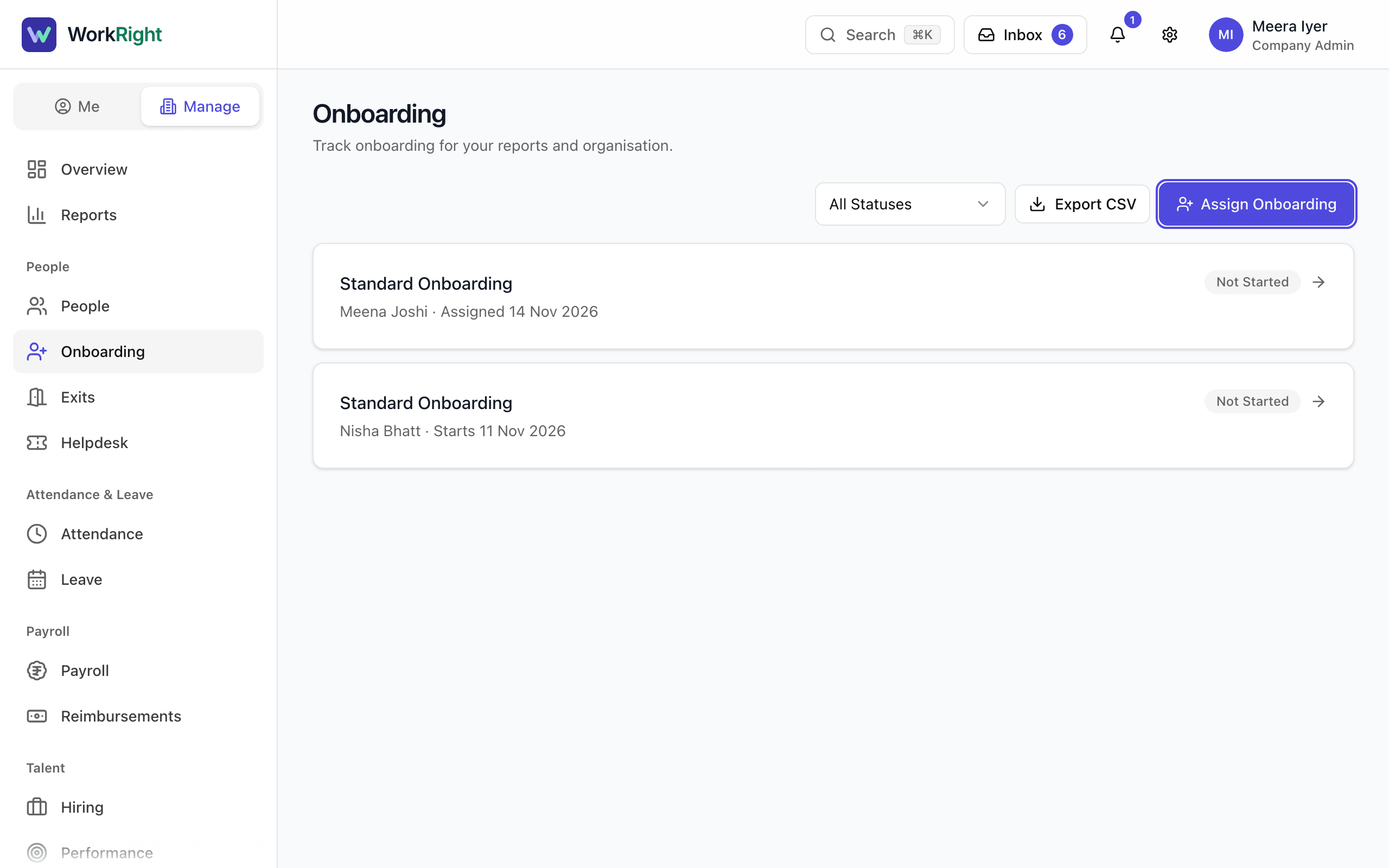
- Step 2: Pick the Template and the Employee. Set the Joining Date if you want due dates counted from it.
- Step 3: Select Assign.
- Step 4: To follow progress, open the checklist from the list, or open the person's profile and select Open checklist. The card Onboarding on their profile shows the status: Not Started, In Progress, Completed or Cancelled.
- Step 5: Each task shows who owns it and when it is due. Select Done on a task that is finished.
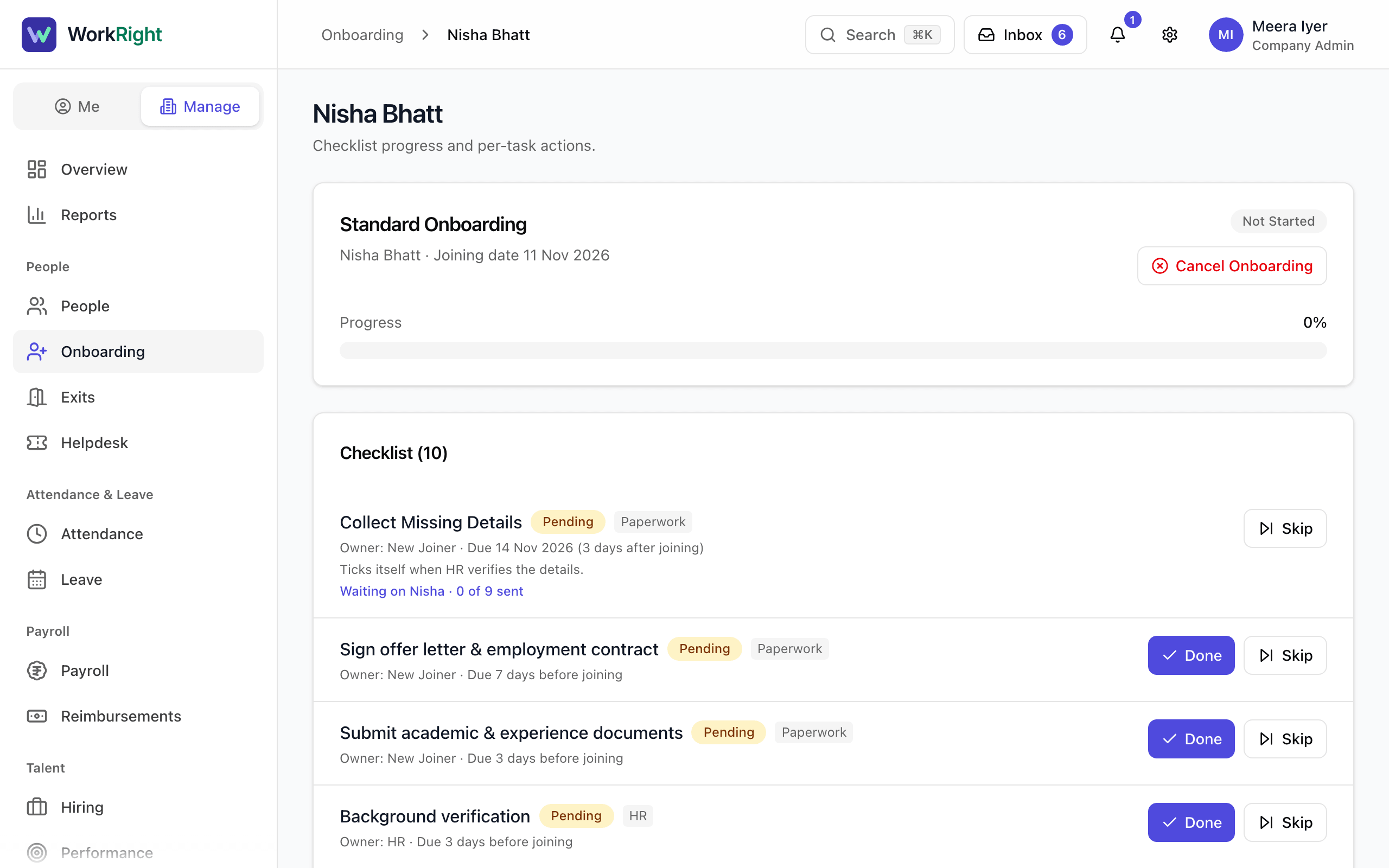
- Step 6: For a task that does not apply, select Skip, then confirm with Skip Task. A skipped task cannot be opened again.
- Step 7: Tasks that belong to the new person or to their manager show who they are waiting for. The new person and the manager do their own tasks from Inbox, under Tasks. HR can finish any task.
- Step 8: To stop a checklist, select Cancel Onboarding and confirm. A cancelled checklist is frozen and cannot be changed.
- Step 9: To change the checklist your company uses, select the gear in the top bar, open Settings, and under People choose Checklists. Open the Onboarding tab.
- Step 10: Select a task to change Who Does It and when it is Due, move it up or down, or remove it. Select + Add Task to add one from WorkRight or your own to-do.
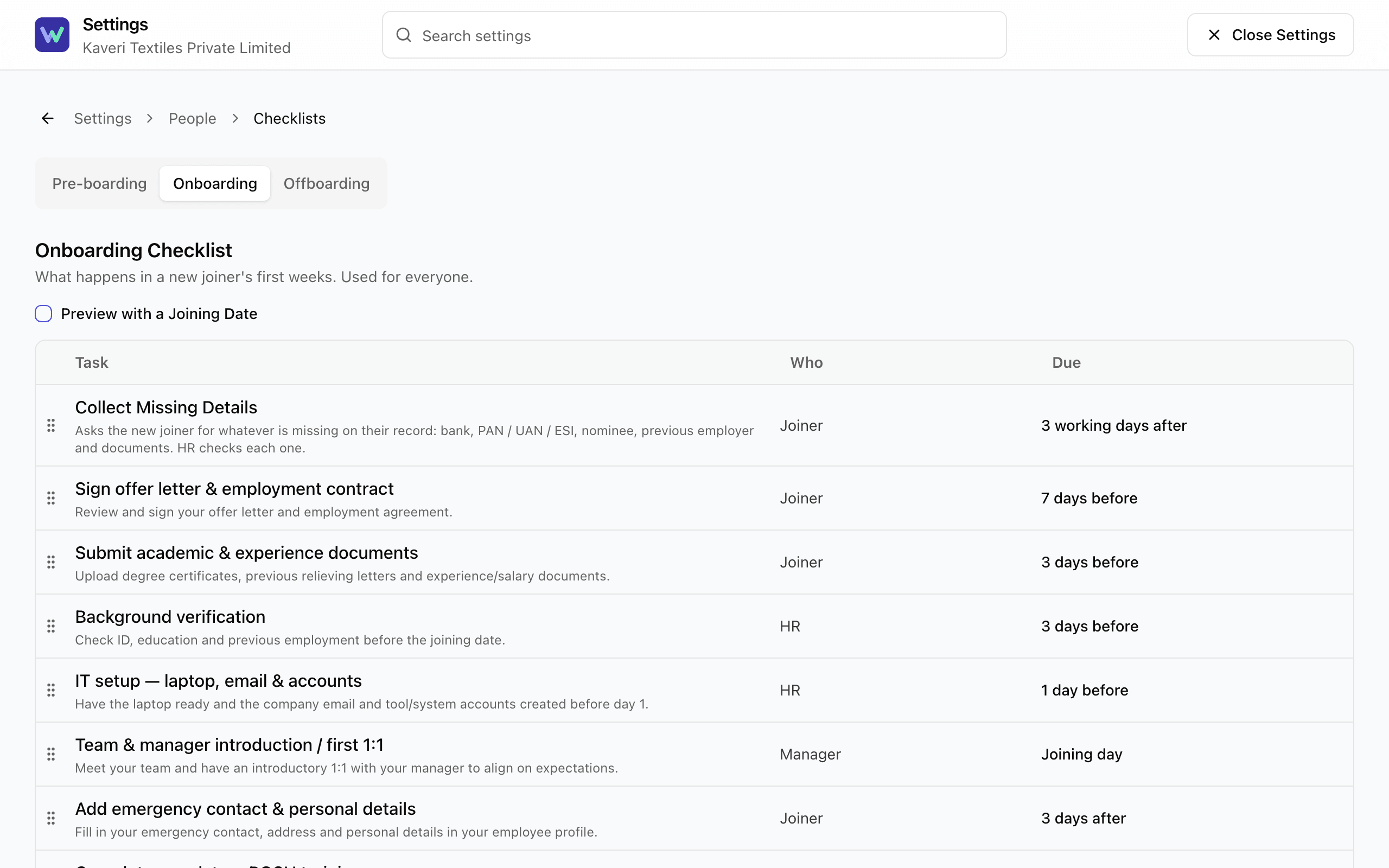
- Step 11: To use a different checklist for one department, select Make One for a Department.
What Happens Next
- A new person's checklist is a copy. Later changes to the template do not change checklists that are already running. The editor offers to add a new task to people who are already in the middle of one.
- The standard checklist has tasks such as collecting missing details, signing the offer letter, background verification, IT setup, meeting the team, POSH training, policy review and a 30-day check-in. You can edit all of them.
- When every task is done or skipped, the checklist shows as Completed.
If the App Says No
The app says:
No active onboarding template yet — set one up under Settings › People › Checklists to assign it automatically.
What it means: Your company has no active onboarding checklist, so the tick box on the Add People page is switched off.
What to do: Open Settings, then Checklists, and check that the Onboarding tab has a checklist.
The app says:
Skipping a task is final
What it means: A skipped task is closed for good.
What to do: Use Done if the task was actually finished.
Questions People Ask
Who can complete a task?
HR can complete any task. The new person completes tasks owned by them, and their manager completes tasks owned by the manager. A task owned by someone else shows who it is waiting for.
A task was added to the checklist later. Will my running checklists get it?
Not on their own. After you add a task, the editor asks whether to add it to the people who are in the middle of a checklist. Say yes if you want them to have it.
Can different departments have different checklists?
Yes. Select Make One for a Department in Settings, under Checklists. Everyone in other departments gets the standard checklist.
Can I assign the checklist to many people at once?
Yes, when you import people from a spreadsheet. Keep Assign the Onboarding Checklist to Everyone Imported ticked. See Import People From a Spreadsheet.
What is the task about missing details?
It checks what is missing on the new person's record and, if something is, asks them for it. HR then checks each item. See Ask an Employee for Details and Documents.
Related
- Add an Employee — Add one person to your company, send them an invite to sign in, and start their onboarding checklist.
- Pre-board a Joiner Before Day One — Invite someone who has accepted your offer to share their details and documents before they join, then check what they send.
- Ask an Employee for Details and Documents — Ask a current employee for missing bank, ID, nominee or document details, then check what they send before it goes on their record.
- Confirm That a Joiner Has Joined — On the joining day, tell WorkRight whether the person joined, so they become an employee with everything they shared already filled in.
Plain-English summary of how the app works, not legal advice.