
Sign In for the First Time
- Who can do this
- Employees, Managers, HR Managers, Company Admins, Accountants, ICC Members
- Updated
Before You Start
- The invite email from your company. If you cannot find it, ask HR to resend it.
- If your company shared a temporary password instead, you need that password and your work email.
Steps
- Step 1: Open the invite email and select the link. It works for 7 days and only once.
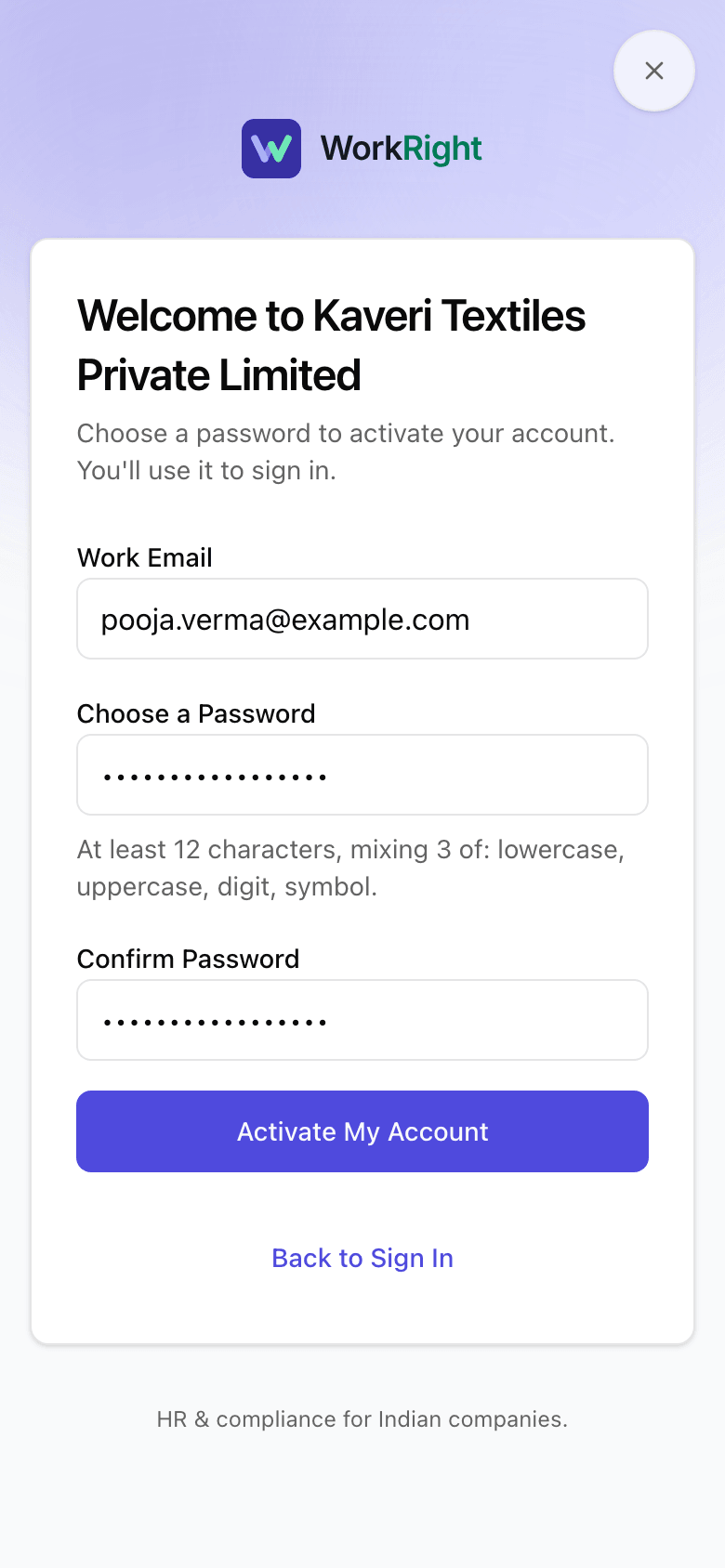
- Step 2: On the page that welcomes you, check Work Email, type a password in Choose a Password and repeat it in Confirm Password.
- Step 3: Select Activate My Account.
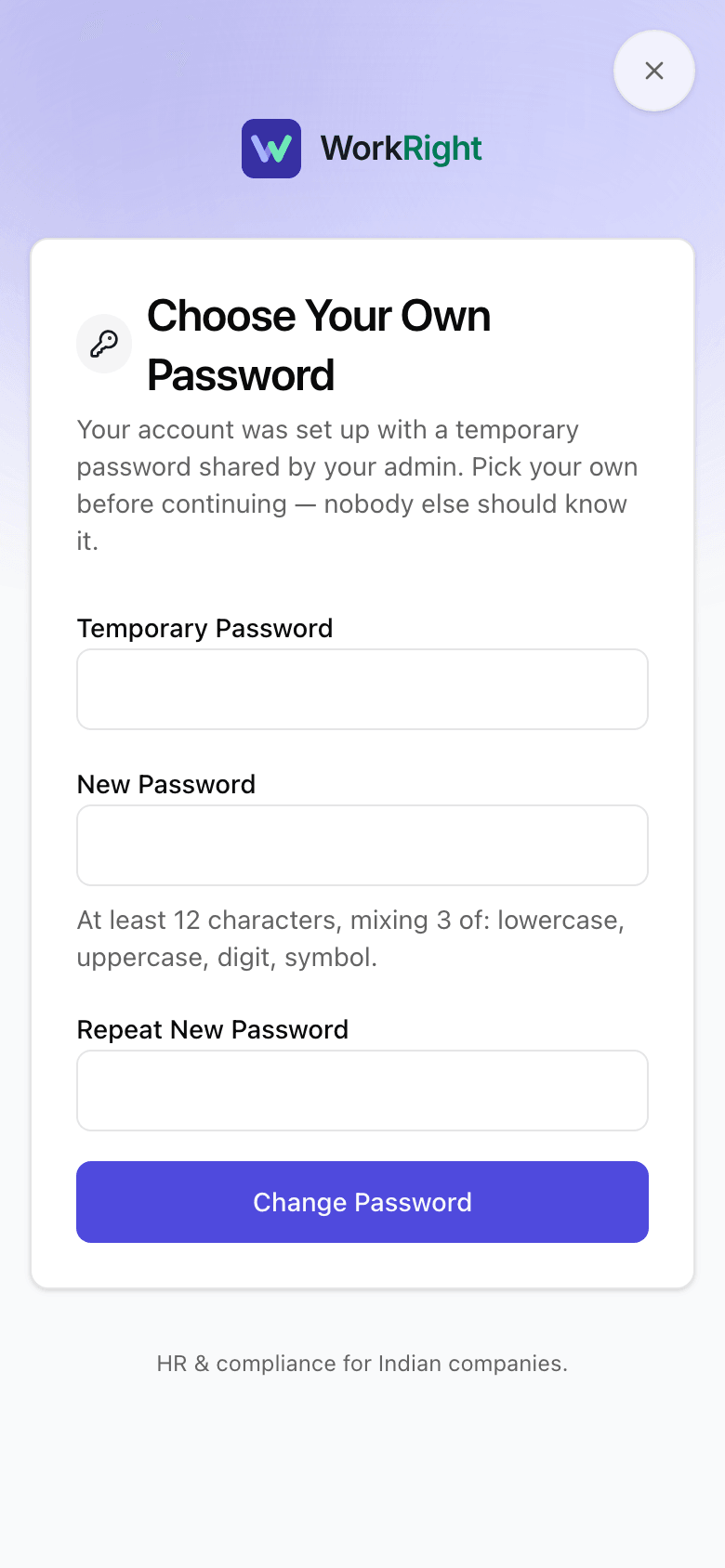
- Step 4: If your company gave you a temporary password instead of an email link, go to Sign In, use your work email and the temporary password, and wait for the page Choose Your Own Password.
- Step 5: On that page, type the temporary password in Temporary Password, your own in New Password and again in Repeat New Password, then select Change Password.
- Step 6: If your role needs two-factor sign-in, the next page says so. Choose Add a passkey (recommended) to use your fingerprint, face or device PIN, or Use an authenticator app to use a 6-digit code.
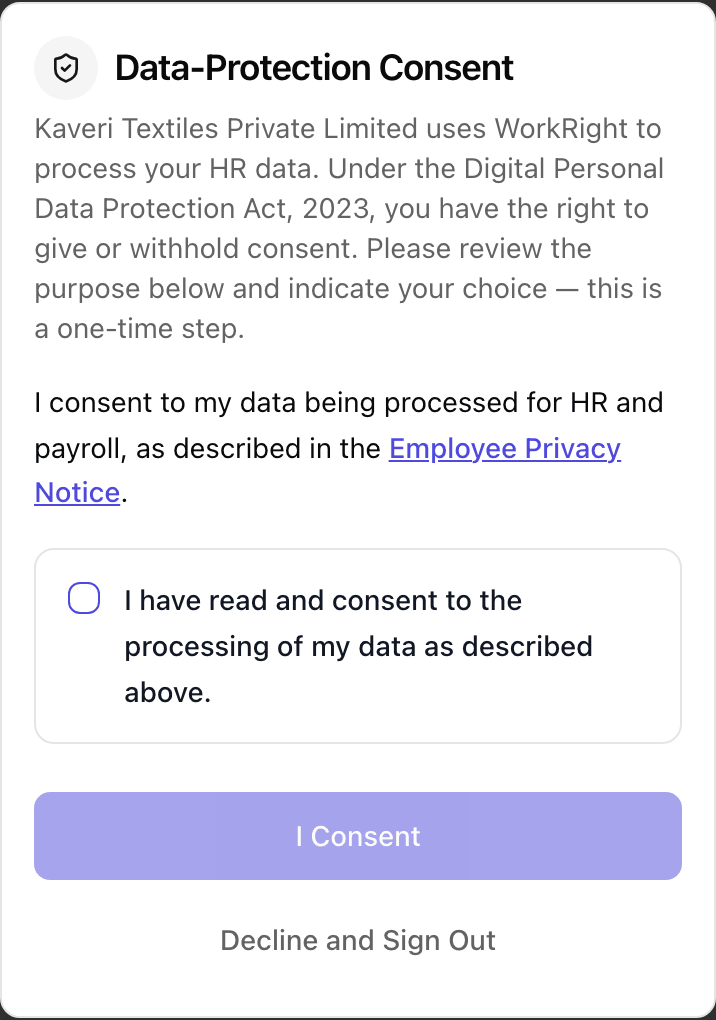
- Step 7: A box called Data-Protection Consent opens. Read the sentence, tick the box under it, and select I Consent.
What Happens Next
- You land in your company's workspace. Your menus depend on your role.
- The consent box shows once. WorkRight records your consent and does not ask again.
- Your two-factor method covers every company you belong to. You set it up once.
If the App Says No
The app says:
This invitation link has expired
What it means: Invite links work for 7 days and only once.
What to do: Type your email and select Send Me a New Link, or ask HR to resend the invite.
The app says:
Two-factor authentication is required
What it means: Your role, or your company, needs a second step when you sign in. You cannot skip it.
What to do: Add a passkey or an authenticator app on the page. It takes about a minute.
The app says:
That code was already used
What it means: A code from your authenticator app works once.
What to do: Wait for your app to show the next code, about 30 seconds, and type that one.
The app says:
Passwords do not match
What it means: The two password boxes are different.
What to do: Type the same password in both.
The app says:
The new password must be different
What it means: Your new password cannot be the same as the temporary one.
What to do: Choose a password you have not been given.
Questions People Ask
Who needs two-factor sign-in?
HR managers always. A company can also switch it on for everyone, and then every person is asked to set it up. Everyone else can add it from their profile whenever they want.
What is a passkey?
It lets you sign in with your fingerprint, face or device PIN, with nothing to type. An authenticator app, such as the ones that show a 6-digit code, is the other choice.
How long do I stay signed in?
While you keep using WorkRight you stay signed in on that device for up to 90 days, then you sign in again. If you do not open WorkRight for 30 days, you are also asked to sign in again.
What does the consent box mean?
It asks you to agree that your data is used for HR and payroll, as described in the Employee Privacy Notice. If you decline, you are signed out and cannot use the company's workspace until you agree. You can sign back in and agree later.
My link says it has expired. What do I do?
Type your email on that page and select Send Me a New Link. If the email is not set up on your company's side, ask HR to give you a temporary password.
I already had a WorkRight login for another company. What changes?
You keep your own password. For a company that adds an email that already has a login, you may be asked to confirm your email from a link first. Choosing a password in that link is how you confirm it is yours.
Related
- Fix an Invite That Did Not Arrive — Resend an invite, correct a mistyped email, or give the person a new temporary password when the invite never reached them.
- Finish Your Details When HR Asks — When HR asks you for bank details, IDs or documents, send each one from the app so HR can check it.
- Choose the Right Role for Someone — What each of the six roles can do, who is allowed to give which role, and how the company owner fits in.
Plain-English summary of how the app works, not legal advice.