
Pre-board a Joiner Before Day One
- Who can do this
- HR Managers, Company Admins
- Plan
- Needs the HR Core module. Not available on the POSH only plan.
- Updated
Before You Start
- The joiner's full name, personal email, mobile number and joining date.
- Their department, designation and manager, if you know them. The department picks the checklist the joiner gets.
- Someone hired through the Hiring module is added here for you when their offer is accepted, if Invite Automatically When an Offer Is Accepted is on. This article is for everyone else, and for following up on both.
Steps
- Step 1: Open Manage, choose People, then open the Pre-boarding tab.
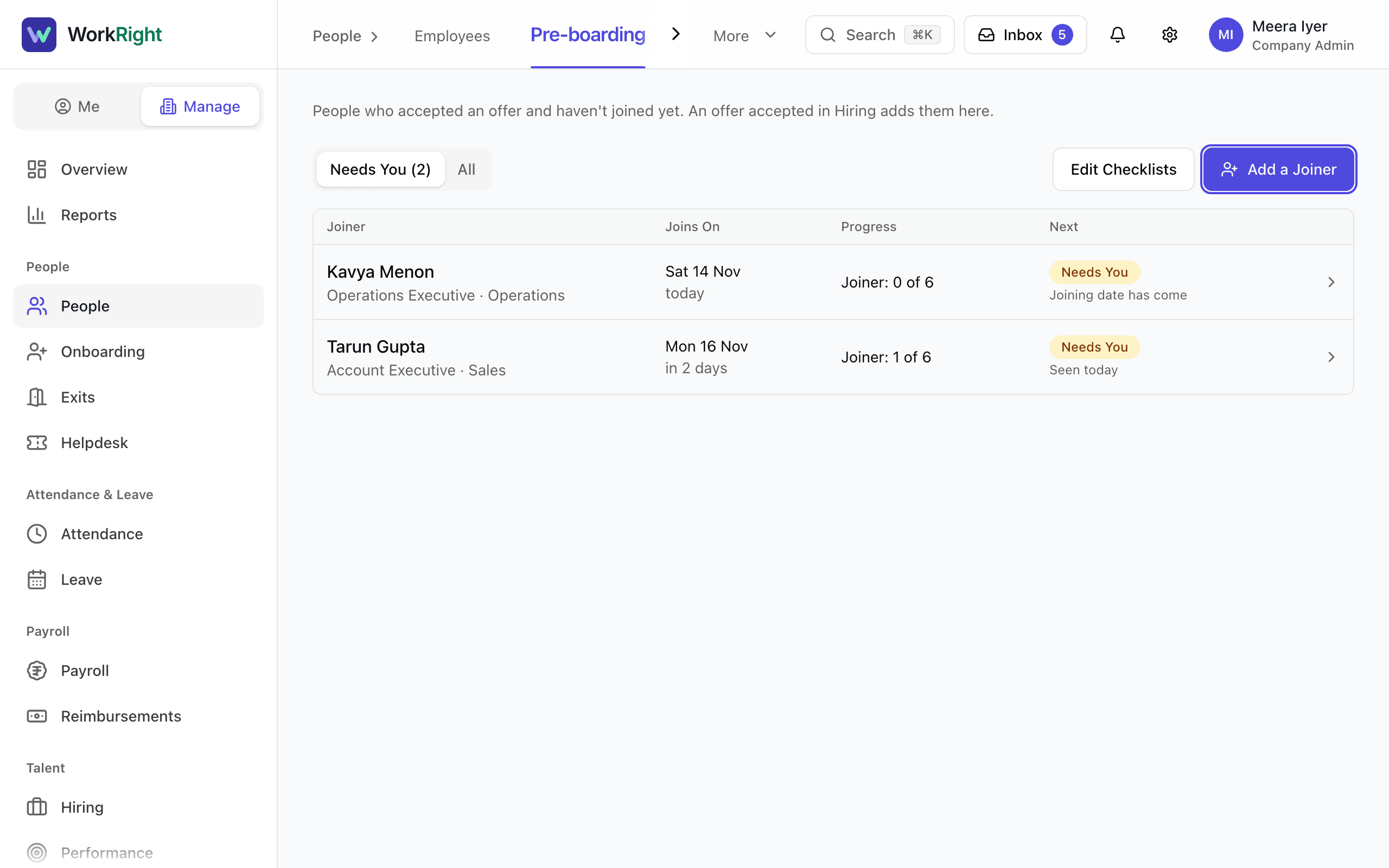
- Step 2: Select Add a Joiner.
- Step 3: Fill in Full Name, Personal Email, Mobile, Department, Joining Date, Designation and Manager. Use the joiner's own email, because they do not have a work email yet.
- Step 4: Look at the checklist shown in the box. It is picked from the department. If you have more than one, select Change to pick another.
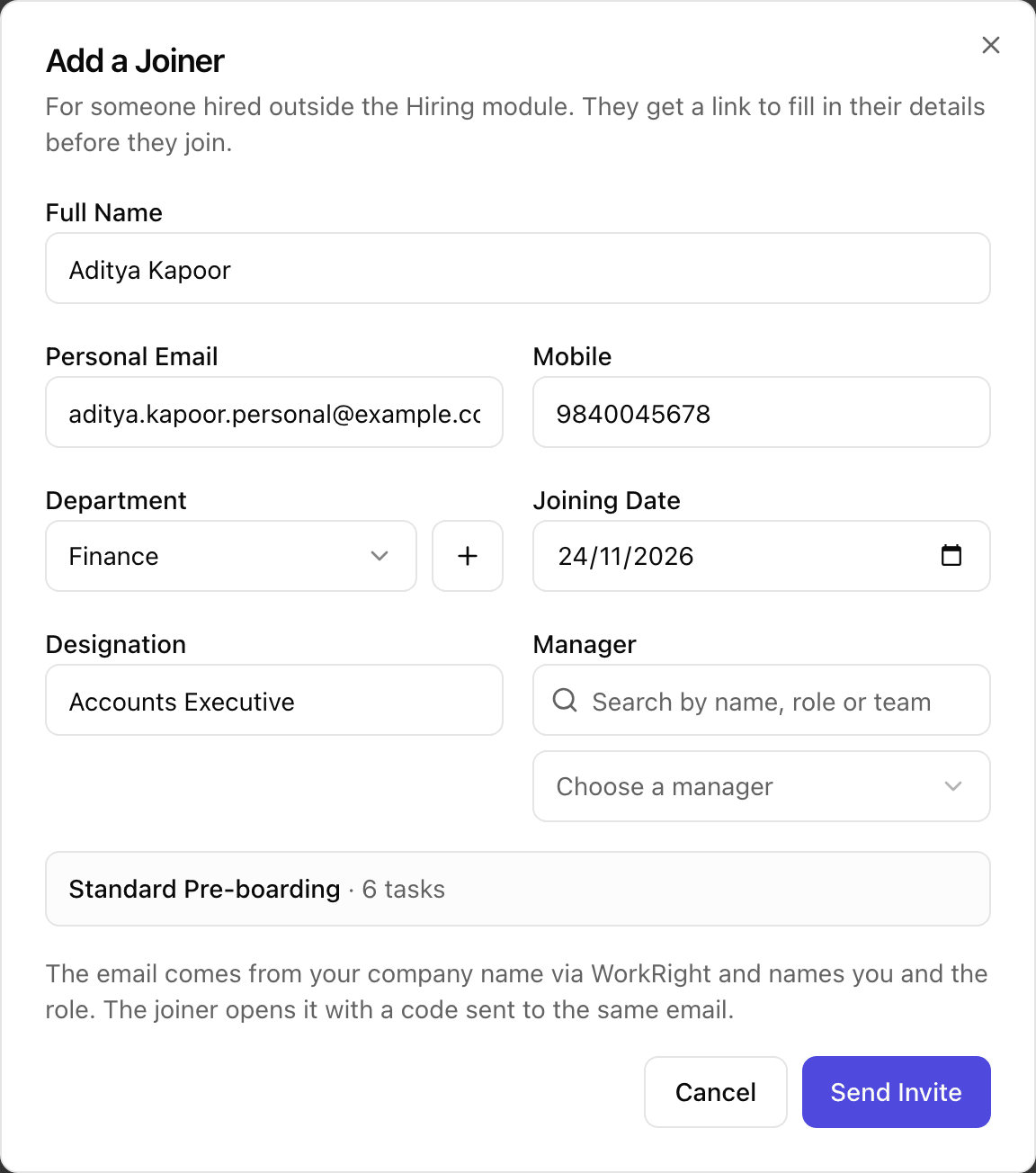
- Step 5: Select Send Invite. The joiner gets an email with a link. The page asks for a 6-digit code that is sent to the same address.
- Step 6: Come back to the list to follow progress. Each row shows how many steps the joiner and your team have finished, and what comes next. Use the Needs You filter to see only the people who wait for you.
- Step 7: Select a row to open the joiner. Where a step shows that something was sent, select Check. The file opens next to what the joiner typed.
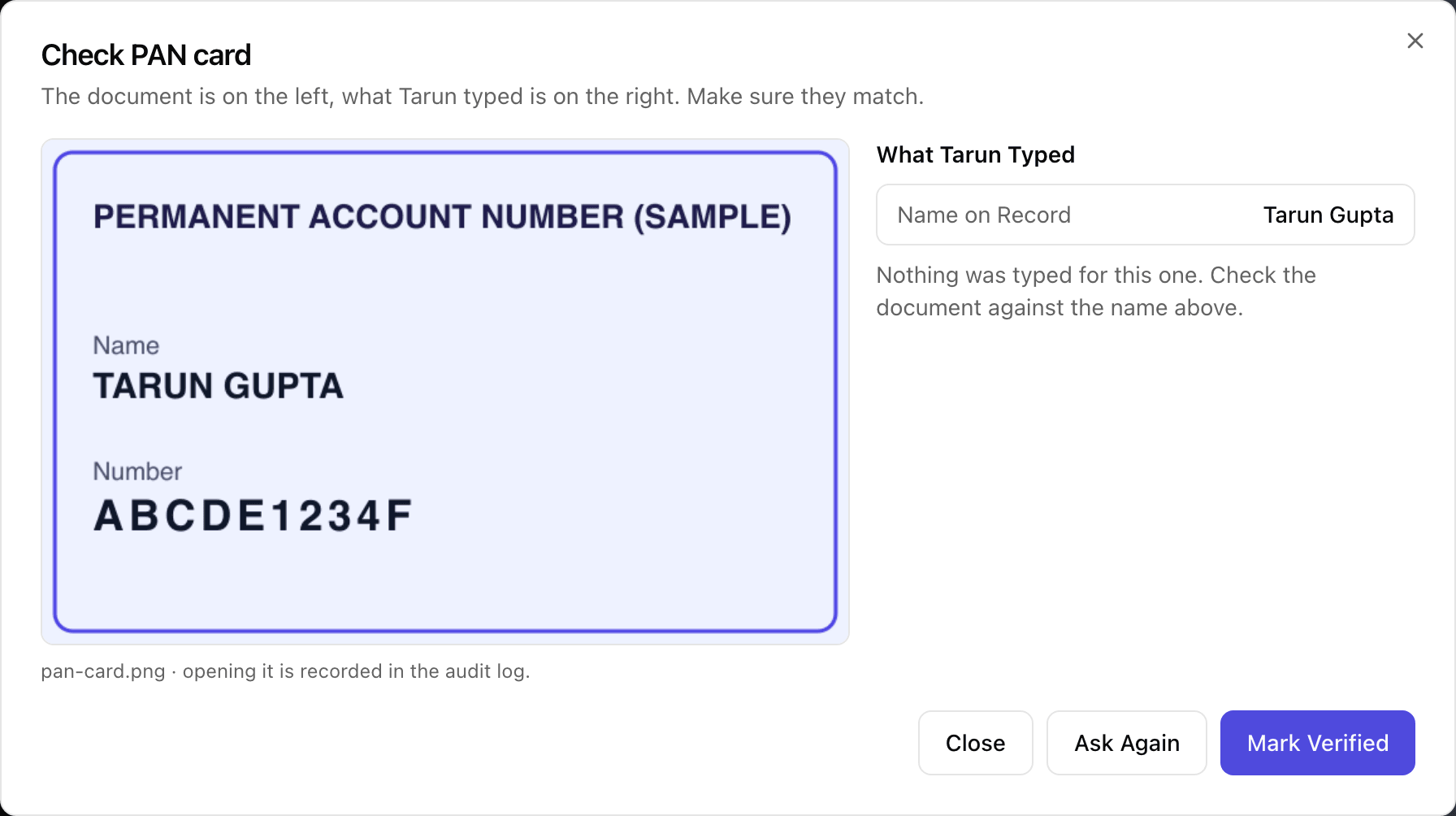
- Step 8: If it is right, select Mark Verified. If it is not, select Ask Again, pick a reason such as Blurred or Wrong Document, add a note, and send it. The joiner sees your reason and gets an email.
- Step 9: For steps that belong to you or your team, select Mark Done when they are finished, or Skip if they do not apply.
- Step 10: To nudge someone who is slow, select Send Reminder. You can remind a joiner once a day.
- Step 11: If the joiner's date moves, select Change Joining Date. If you used the wrong email, select Change Email and Resend. The old link stops working.
- Step 12: If the person decides not to join, select Not Joining, write a short reason, and confirm with Mark Not Joining.
What Happens Next
- The joiner works through their own checklist on their phone or computer. They do not need a WorkRight account yet. Fill In Your Details Before You Join shows what they see.
- Nothing they send reaches their employee record until you verify it. Verified documents move into their HR documents when you confirm they joined.
- On the joining day you are asked whether they joined. See Confirm That a Joiner Has Joined.
- If the person is marked as not joining, their link stops, your team's tasks for them are cancelled, the offer in Hiring is marked Didn't Join, and the documents they uploaded are deleted after 30 days.
- To change which steps and documents are asked for, select Edit Checklists on the Pre-boarding page. Aadhaar is never required: ID proof accepts a masked Aadhaar, a passport or a voter ID.
If the App Says No
The app says:
The Invite Email Was Not Sent
What it means: The joiner was added, but the email did not go. Either email is not set up for your company or sending failed.
What to do: Tell the joiner yourself, or open their row later and use Change Email and Resend to try again.
The app says:
Your Plan Needs Room
What it means: Your plan would not have a free seat for this person on their joining date.
What to do: Free a seat or upgrade your plan before the joining date. The joiner is still added.
The app says:
You can remind once a day.
What it means: A reminder already went out to this joiner today.
What to do: Try again tomorrow. Reminders also go out by themselves the day before a due date.
The app says:
Add a short note so they know what to fix.
What it means: The reason Other needs a note, so the joiner knows what to correct.
What to do: Write a line in the note box and select Ask Again again.
The app says:
Tell us why, in a few words.
What it means: Marking someone as not joining needs a reason.
What to do: Type a reason and select Mark Not Joining again.
Questions People Ask
Does the joiner need a WorkRight account?
No. They open the link from their email and enter a 6-digit code sent to the same address. They get a normal account only when you confirm that they joined.
How long does the joiner's link work?
Until you send a new link, mark them as not joining, or 7 days after their joining date, whichever comes first. After that the page tells them to ask HR for a new link.
What if the joiner never opens the email?
Their row says the link was not opened and when it was sent. Select Send Reminder, or use Change Email and Resend in case the address was wrong.
Can I choose which documents the joiner uploads?
Yes. Select Edit Checklists, open the Upload documents step and tick the documents you want. You can also make a different checklist for a department.
I can see the joiner's steps but not a document. Why?
Documents and numbers are hidden in the list. Check is the one place where you open a file, and WorkRight keeps a record that you did.
What happens to the documents if someone never joins?
They are deleted 30 days after you mark the person as not joining.
Related
- Fill In Your Details Before You Join — For a new joiner: open the link from your new company, confirm it is you with a code, and share your details and documents before day one.
- Confirm That a Joiner Has Joined — On the joining day, tell WorkRight whether the person joined, so they become an employee with everything they shared already filled in.
- Assign and Work Through an Onboarding Checklist — Give a new person a checklist of first-days tasks, see who owns each task, mark tasks done or skipped, and edit the checklist your company uses.
- Ask an Employee for Details and Documents — Ask a current employee for missing bank, ID, nominee or document details, then check what they send before it goes on their record.
Plain-English summary of how the app works, not legal advice.