
Fill In Your Details Before You Join
- Who can do this
- Someone who has accepted a job and received a joining link by email. You do not need a WorkRight account yet.
- Updated
Before You Start
- The email from your new company with your joining link.
- Your phone or computer, and the same email inbox, to receive a 6-digit code.
- Photos or files of your documents, such as PAN card, photo, ID proof, degree certificate and your last relieving letter. HR chooses which ones are asked.
Steps
- Step 1: Open the link in the email. You see a welcome with your offer and joining date.
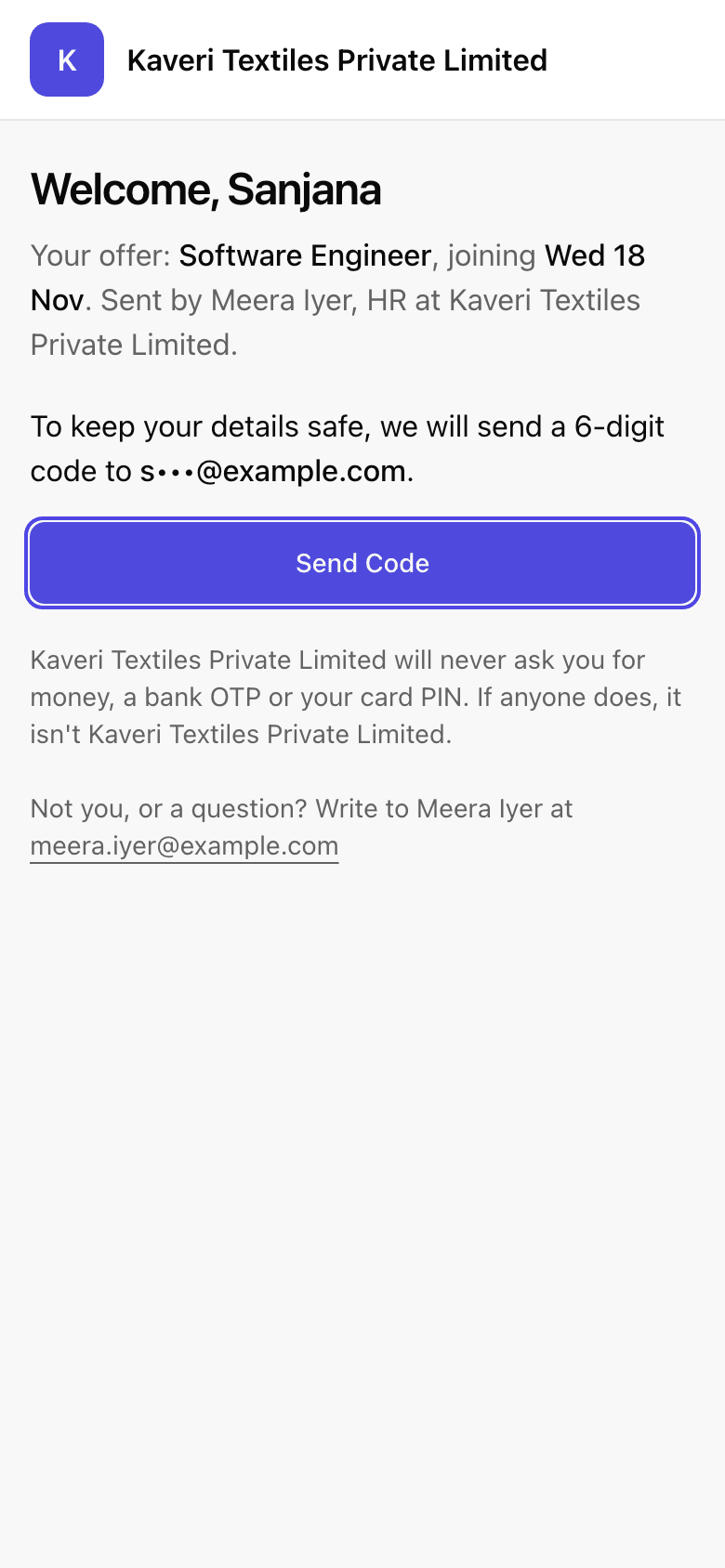
- Step 2: Select Send Code. We send a 6-digit code to your email. It works for 10 minutes.
- Step 3: Type the code in Code.
- Step 4: Leave Remember this phone until I join ticked if this is your own phone.
- Step 5: Select Continue.
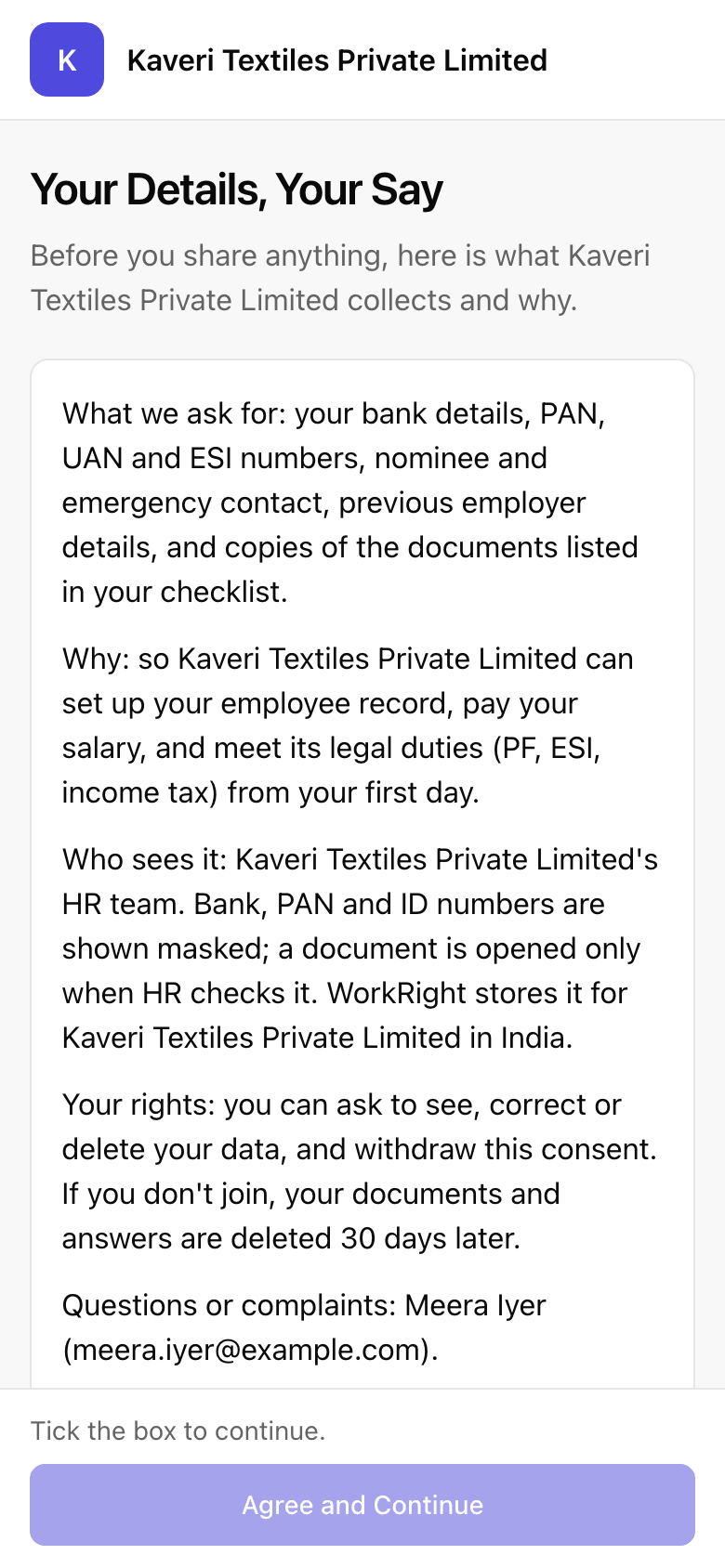
- Step 6: Read the page called Your Details, Your Say. It tells you what the company collects and why. Tick the box that starts with I agree to share these details with, then select Agree and Continue.
- Step 7: On the page called Before You Join, pick a step. The steps are the ones HR chose, such as Confirm joining date, Upload documents, Bank details, PAN, UAN and ESI number, Nominee and emergency contact, Read and accept policies and Previous employer details.
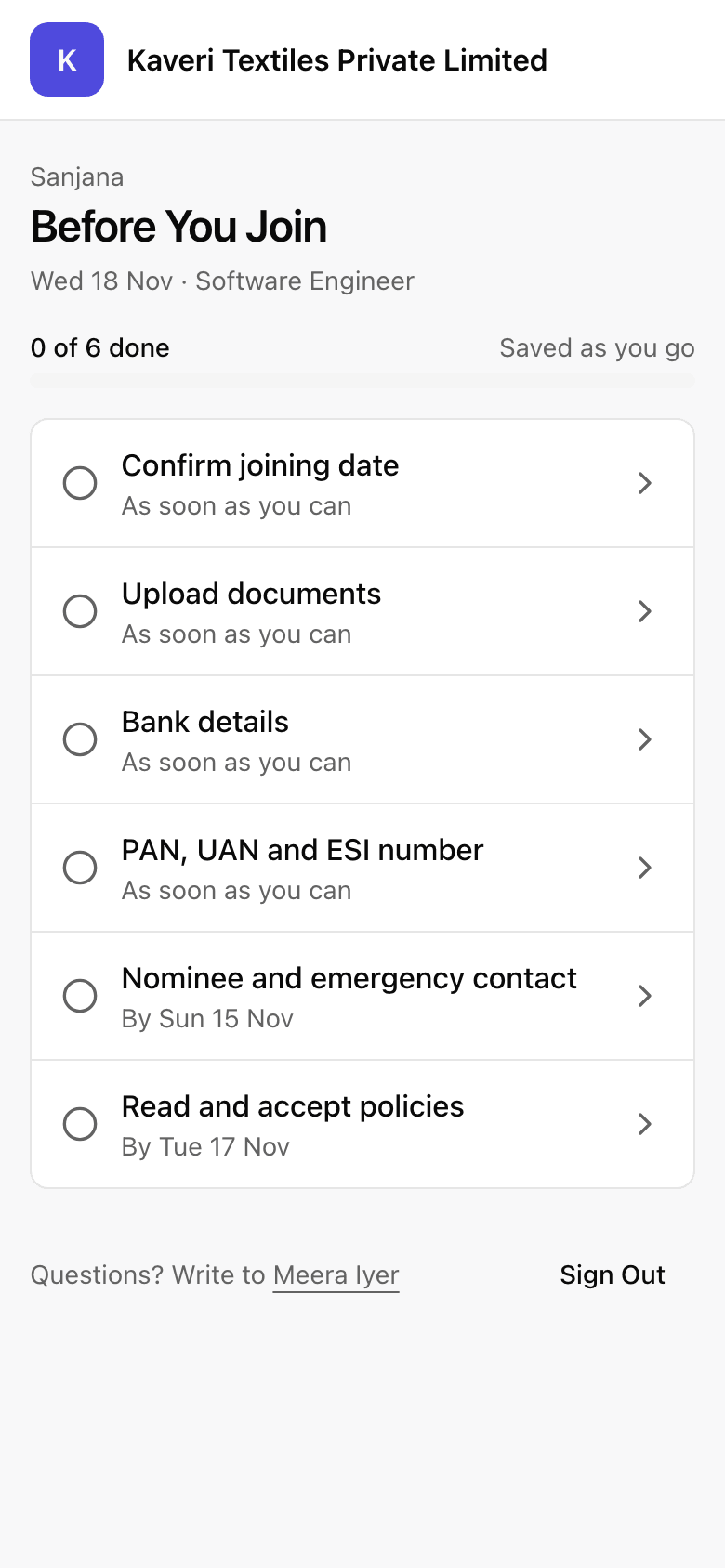
- Step 8: Fill in the step and select Save and Continue. Your answers are saved as you go.
- Step 9: For a document, select Take Photo or Choose File. Make sure the whole document is visible and easy to read.
- Step 10: When you finish, check the Your First Day card, if it is there, for the time, place and what to bring. Select Sign Out when you are done.
What Happens Next
- HR checks what you send. Nothing goes on your employee record until they do.
- If a document needs another try, a red card at the top tells you which one and why, for example that the edges were cut off. Open it and send it again.
- On your joining day, HR confirms that you joined. You then get an email to sign in to WorkRight with your work email.
- You can come back to the same link any time before you join. Ask for a new code and carry on where you stopped.
If the App Says No
The app says:
This Link Has Stopped Working
What it means: HR sent you a newer link, changed your email, or it is more than 7 days after your joining date.
What to do: Write to the HR person who emailed you and ask for a new link.
The app says:
Enter the 6 numbers from your email.
What it means: The code box is empty or not complete.
What to do: Type all 6 numbers from the latest email. Select Send a New Code if it is lost.
The app says:
You Are Signed Out
What it means: Your session ended. Your details are saved.
What to do: Select Sign In With a Code and ask for a new code.
Questions People Ask
I did not get the code. What now?
Check your spam folder first. The code goes to the same address that received your joining link. Wait half a minute, then select Send a New Code. If the address is wrong, ask HR to correct it.
I do not have a UAN or an ESI number. Can I still finish?
Yes. On the PAN, UAN and ESI number step, tick I Don't Have One under UAN or ESI.
Do I have to share my Aadhaar number?
No. Aadhaar is never required. For ID proof you can use a masked Aadhaar, a passport or a voter ID.
Can I ask to change my joining date?
Yes. On the Confirm joining date step, tick I need a different date, pick the date you can join, and select Send to HR. HR checks it and confirms.
Can I stop halfway and come back?
Yes. Everything is saved as you go. Open the same link, ask for a new code, and continue.
Who can see what I share?
The page you agree to at the start lists what the company collects and why. Your answers go to the HR people who handle your joining, and they check them before anything goes on your record.
Related
- Pre-board a Joiner Before Day One — Invite someone who has accepted your offer to share their details and documents before they join, then check what they send.
- Confirm That a Joiner Has Joined — On the joining day, tell WorkRight whether the person joined, so they become an employee with everything they shared already filled in.
- Sign In for the First Time — Set your own password from the invite email, add two-factor sign-in if your role needs it, and answer the data consent box.
Plain-English summary of how the app works, not legal advice.