
Confirm That a Joiner Has Joined
- Who can do this
- HR Managers, Company Admins
- Plan
- Needs the HR Core module. Not available on the POSH only plan.
- Updated
Before You Start
- The person was added as a joiner. See Pre-board a Joiner Before Day One.
Steps
- Step 1: On the joining day, open Inbox, then Approvals, then Joiners. You can also open the person from the Pre-boarding tab under People.
- Step 2: Select the button that starts with Did and ends with Join?, next to the person's name.
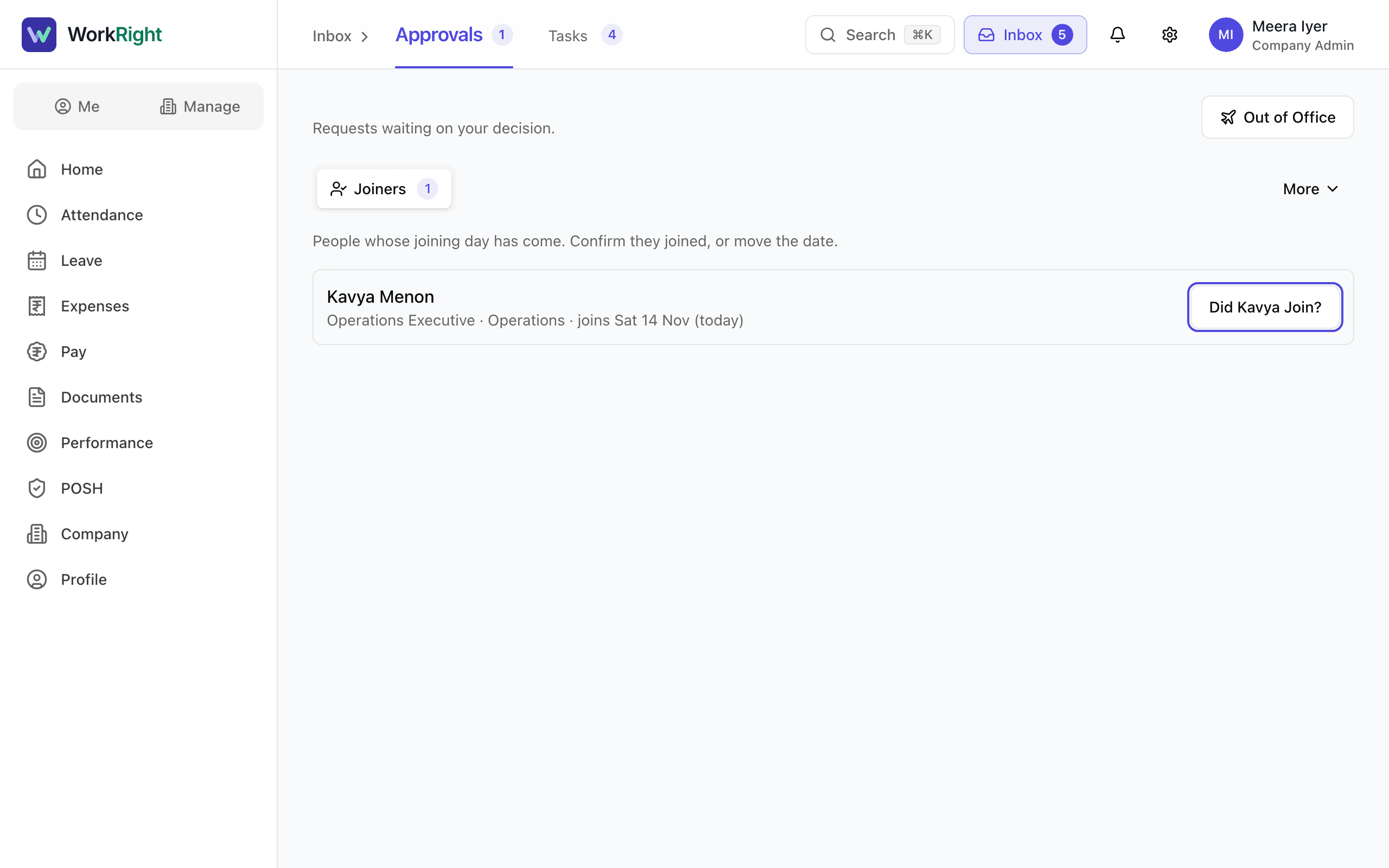
- Step 3: Check the date in Joined On. It starts as the planned joining date. You can pick an earlier day, but not a future one.
- Step 4: Read the list under When you confirm. It says what happens next.
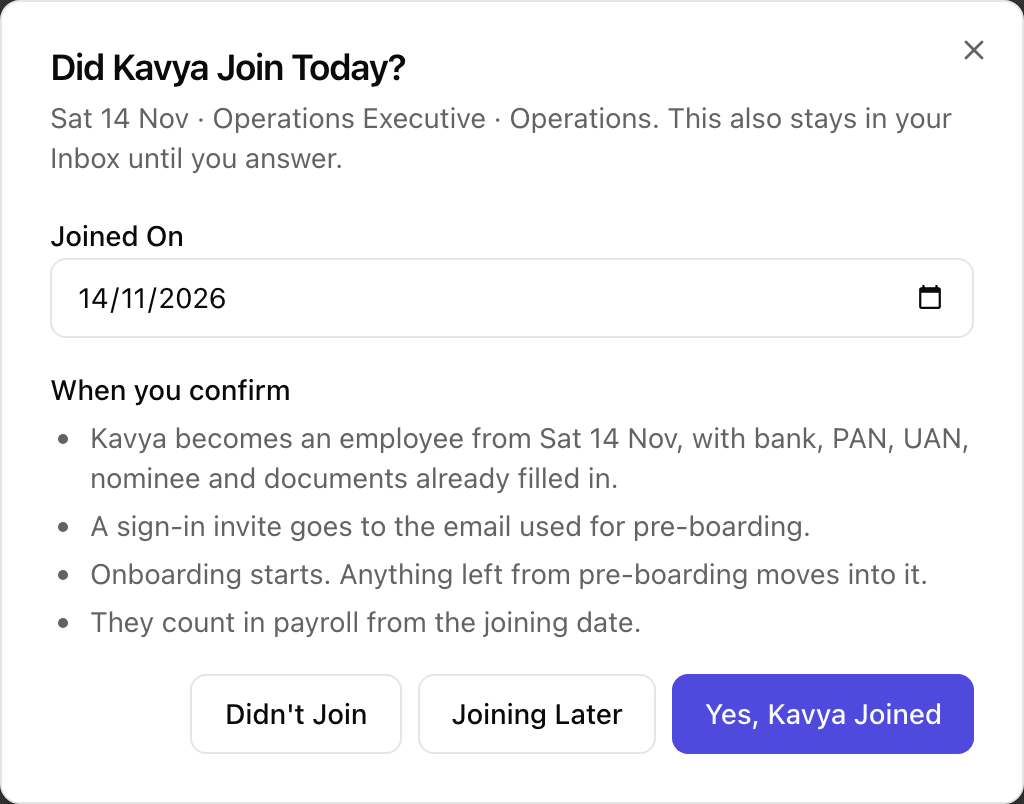
- Step 5: If they joined, select the button that starts with Yes,.
- Step 6: If they will join on another day, select Joining Later, pick the new date, and select Save New Date.
- Step 7: If they will not join, select Didn't Join, write a reason, and select Mark Not Joining.
- Step 8: After a Yes, read the result window. If it says the sign-in invite was not sent, or shows a temporary password, share it with the person privately. Then select Open Employee or Done.
What Happens Next
- The person becomes an employee from the date you chose, with the bank, PAN, UAN, nominee and documents they shared already on their record.
- A sign-in invite goes to the email they used for pre-boarding.
- Onboarding starts with the checklist for their department. Anything they did not finish becomes a request in Finish Your Details for the new employee.
- They count in payroll from the joining date, and they use a seat on your plan.
- The question stays in your Inbox until you answer it.
If the App Says No
The app says:
Nobody Is Waiting to Be Confirmed
What it means: No joiner has reached their joining day yet, so the Joiners list is empty.
What to do: Open the Pre-boarding tab to see who is coming and when.
The app says:
The Sign-in Invite Was Not Sent
What it means: The person is now an employee, but the invite email did not go out.
What to do: Use the temporary password shown in the window, or open their profile and use Resend Invite once email works.
Questions People Ask
What if the person joined on a different day than planned?
Change the date in Joined On before you confirm. It can be today or an earlier day.
What does Joining Later do?
It moves the joining date. Steps that are not done yet get new due dates, and the question leaves your Inbox until the new date.
Do I have to answer?
WorkRight keeps asking in your Inbox until you do. Nobody becomes an employee without your confirmation.
The window shows a temporary password. Who should get it?
Only the new employee. They must change it the first time they sign in. It appears when the invite email could not be sent.
Does the new employee count toward my plan's limit?
Yes. If there is no free seat, WorkRight asks you to upgrade before it creates the employee. The Your Plan Needs Room notice when you added the joiner is the early warning.
I confirmed by mistake. Can I undo it?
If the person has no history yet, delete them with Delete — Added by Mistake. See Remove Someone Added by Mistake, or Deactivate Them.
Related
- Pre-board a Joiner Before Day One — Invite someone who has accepted your offer to share their details and documents before they join, then check what they send.
- Assign and Work Through an Onboarding Checklist — Give a new person a checklist of first-days tasks, see who owns each task, mark tasks done or skipped, and edit the checklist your company uses.
- Ask an Employee for Details and Documents — Ask a current employee for missing bank, ID, nominee or document details, then check what they send before it goes on their record.
- Sign In for the First Time — Set your own password from the invite email, add two-factor sign-in if your role needs it, and answer the data consent box.
Plain-English summary of how the app works, not legal advice.