
Fix an Invite That Did Not Arrive
- Who can do this
- HR Managers, Company Admins
- Updated
Before You Start
- The person must be active and must not have signed in yet. Once they have signed in, the password is theirs.
- Ask them to look in spam and junk first. The invite comes from your company name through WorkRight.
Steps
- Step 1: Open Manage, choose People, and select the person.
- Step 2: Find the card called Hasn't signed in yet. It shows when the last invite was emailed.

- Step 3: To send the same invite again, select Resend Invite. The button turns grey for a few minutes after each send.
- Step 4: If the email address was wrong, select Wrong email?, type the right address in New Email, then select Change Email & Resend Invite. The old link stops working.
- Step 5: If your company cannot send email, there is no resend button. Select Reset Temporary Password instead, then confirm with Reset Password.
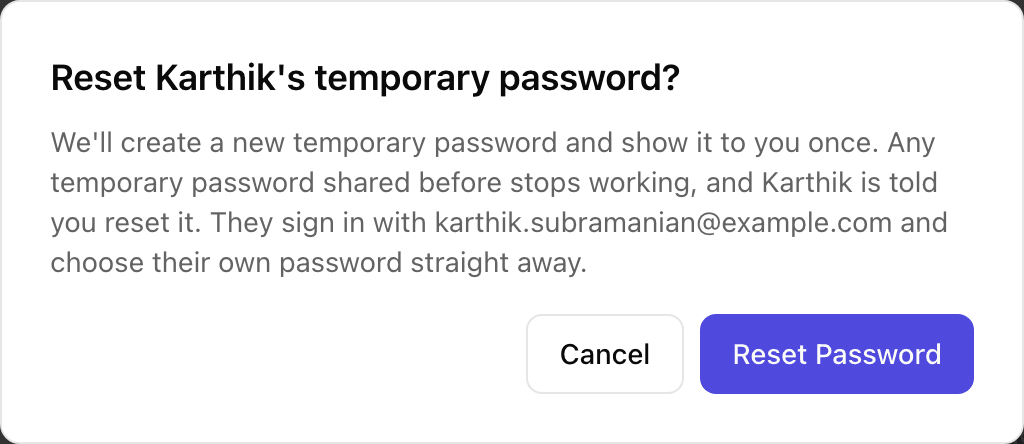
- Step 6: Copy the new temporary password from the window and share it with the person privately. It is shown only once. Select Done when you have copied it.
What Happens Next
- A resent invite is a fresh link that works for 7 days and only once. When you correct the email, the old link stops working.
- A new temporary password replaces any earlier one. The person is told you reset it, and chooses their own password at first sign-in.
- Once the person signs in, the card disappears from their profile.
If the App Says No
The app says:
an invite was sent a few minutes ago — please wait before sending another
What it means: Invites are limited so a person is not flooded with emails.
What to do: Wait a few minutes and select Resend Invite again.
The app says:
email isn't set up on this server, so no invite could be sent
What it means: Your company cannot send email at the moment.
What to do: Use Reset Temporary Password and share the password with the person yourself.
The app says:
this person has already signed in, so only they can change their sign-in email — from My Profile (Sign-in email)
What it means: You can only fix a mistyped email before the person has ever signed in.
What to do: Ask the person to change it from their own profile, under Sign-In Email.
The app says:
this person's login is also used for another company, so changing the email here would change it there too
What it means: The same login belongs to more than one company, so you cannot edit it from one of them.
What to do: Ask the person to change their sign-in email themselves.
The app says:
someone in your company already uses that email
What it means: The new address belongs to another person in your company.
What to do: Use a different address, or check the People list for a duplicate.
The app says:
this person is deactivated — reactivate them before sending an invite
What it means: Invites go only to active people.
What to do: Open the person's Edit Employee page and use Undo Deactivation if they were switched off by mistake.
Questions People Ask
How long does an invite link last?
7 days, and it works once. After that the person sees a page saying the link has expired and can ask for a new one with Send Me a New Link, or you can resend it.
Why is there no Resend Invite button?
The button shows only when your company can send email. If it is missing, use Reset Temporary Password to give the person a way to sign in. The Add People page tells you whether email is set up.
What does Sign-in pending mean?
That email address already has a WorkRight login, for example from another company. The person can come into your company only after confirming their email from the link we send them, and a temporary password cannot replace that.
Can I change the email after the person has signed in?
No. Only the person can do it, from their own profile under Sign-In Email.
The email address was wrong and the person is Sign-in pending. What now?
You cannot change that address here. Delete the person with Delete — Added by Mistake and add them again with the right address. Remove Someone Added by Mistake, or Deactivate Them explains how.
Related
- Add an Employee — Add one person to your company, send them an invite to sign in, and start their onboarding checklist.
- Sign In for the First Time — Set your own password from the invite email, add two-factor sign-in if your role needs it, and answer the data consent box.
- Remove Someone Added by Mistake, or Deactivate Them — Delete a person you added by mistake, or switch someone off when they leave. Each has different rules.
- Import People From a Spreadsheet — Add many people at once from a CSV file, check a preview row by row, and save them in one go.
Plain-English summary of how the app works, not legal advice.