
Remove Someone Added by Mistake, or Deactivate Them
- Who can do this
- HR Managers, Company Admins
- Updated
Before You Start
- Decide which case you are in. A person added by mistake, such as a test import, a duplicate or the wrong person, is deleted. Someone who worked with you and has left goes through an exit. A person who has history and must be switched off is deactivated.
Steps
- Step 1: Open Manage, choose People, and select the person.
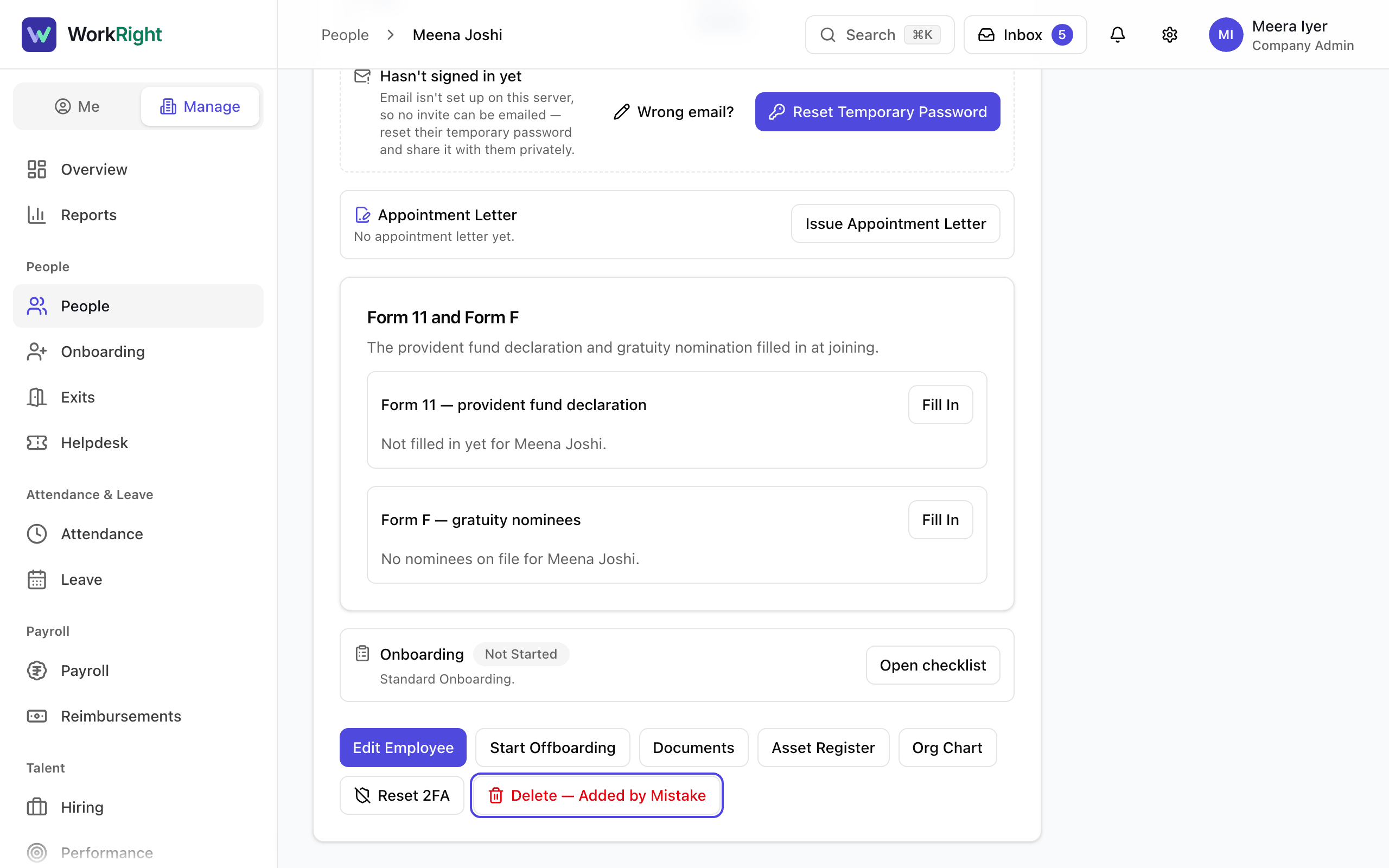
- Step 2: If they were added by mistake, select Delete — Added by Mistake. The window first checks the person's records and lists who can be deleted and who cannot, with the reason.
- Step 3: Read the list. If the person can be deleted, select Delete 1 Person. Deleting cannot be undone.
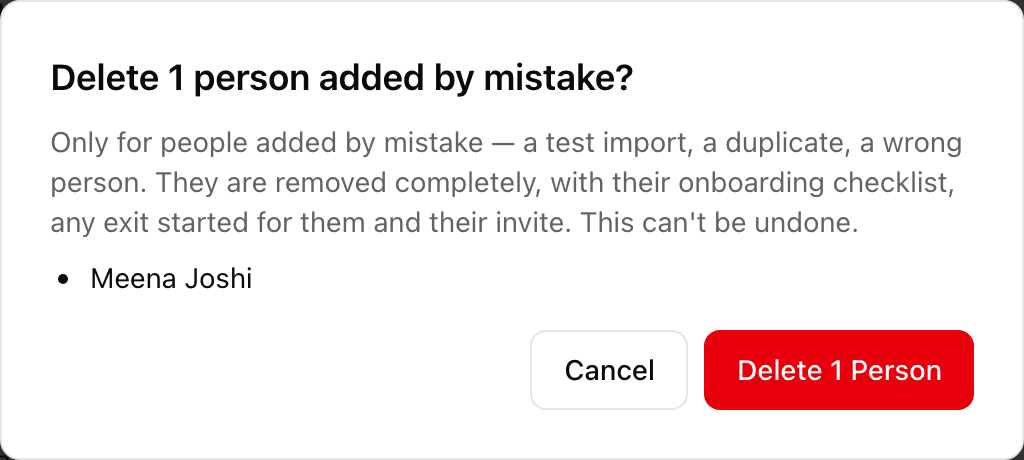
- Step 4: To delete several people, open the People list and select Remove Added by Mistake, tick the people, and follow the same window.
- Step 5: If the person has left, select Start Offboarding instead. It records their last working day, hands over any committee seat, recovers assets, works out the final settlement and issues letters. Closing the exit switches them off.
- Step 6: If you must switch off an account that was created by mistake but has history, select Edit Employee, find the panel Employment status, select Deactivate Without Offboarding and confirm with Deactivate.

- Step 7: If you deactivated someone by mistake, open the same panel, select Undo Deactivation and confirm with Undo Deactivation again. If they have really left and are coming back, use Rehire instead.
What Happens Next
- A deleted person is removed completely, together with their onboarding checklist, any exit started for them and their invite.
- A deactivated person cannot sign in and drops out of payroll runs. Their history stays. They stop using a seat on your plan.
- A person whose exit was closed keeps read-only access to their own payslips, letters and documents for 12 months.
If the App Says No
The app says:
This person can't be deleted
What it means: The person has history, such as leave, attendance, payroll, documents or a sign-in, that would be lost.
What to do: Deactivate them instead, or run an exit if they have left.
The app says:
This person can't be switched off directly because their exit is already in progress.
What it means: An exit is already open for them.
What to do: Open the exit and finish it or cancel it.
The app says:
Holds an Internal Committee (POSH) seat — hand the seat over through offboarding so the committee keeps its quorum.
What it means: The person sits on the POSH committee, which must keep its members.
What to do: Use Start Offboarding, which includes the seat hand-over.
The app says:
Still holds company assets — record their return (or loss) through offboarding.
What it means: The person still has laptops or other company items on record.
What to do: Use Start Offboarding, which includes recovering assets.
The app says:
The owner can't be deactivated. Transfer ownership first.
What it means: The company owner is protected.
What to do: Transfer ownership to another company admin first.
The app says:
you cannot deactivate yourself
What it means: Nobody switches off their own account.
What to do: Ask another admin.
Questions People Ask
What is the difference between deleting and deactivating?
Deleting removes a person completely and is only for people with no history. Deactivating switches off their sign-in and payroll but keeps everything on file. For a real exit, use Start Offboarding: it runs the final settlement and letters, then deactivates.
Can I delete someone who has already signed in?
Usually not. A person with leave, attendance, payroll, documents or a sign-in on record cannot be deleted. The window tells you why. Deactivate them instead.
Does a deactivated person still use a seat?
No. Seats count active people only. Undoing a deactivation uses a seat again.
Can I delete myself or the company owner?
No. The window refuses, and the owner must hand over ownership first.
Where do I read about running an exit?
Related
- Add an Employee — Add one person to your company, send them an invite to sign in, and start their onboarding checklist.
- Import People From a Spreadsheet — Add many people at once from a CSV file, check a preview row by row, and save them in one go.
- Fix an Invite That Did Not Arrive — Resend an invite, correct a mistyped email, or give the person a new temporary password when the invite never reached them.
- Add Contract Staff, Interns and Consultants — How to add someone who is not a regular full-time employee, and how to pay them through payroll or by invoice.
Plain-English summary of how the app works, not legal advice.